
How the home page is built
From top to bottom, a visitor sees:
- The first block (hero): the first thing on the page. Its posts come ready-made from Blogger's server with the page, so it appears fast and Google reads it straight away. Its lead story rotates automatically.
- Home blocks: from the second block on. Each block shows posts from one label in one of 24 layouts, with the card, count and columns you choose.
- Page numbers: at the bottom, so visitors can move on to older posts.
You set all of this in the Home tab of the side panel, then click Apply to blog. After the first apply, every block is also an HTML gadget in Blogger's Layout page, so you can edit it there too, even without the extension.
No post appears twice on the home page. A post can have several labels, but the theme fills the blocks from top to bottom and skips any post already shown above, including the first block's posts.
During the free trial: the block editor is visible but locked under "Editing and reordering home sections — paid version", and the home page uses the template's own blocks as designed. A "First block design" from another template is also applied only in the paid version. Everything else in this tab (the first block's label, motion, page numbers, breaking ticker, wiki texts) works fully.
The first block (hero)
This is the most valuable space on your blog, because it is the first thing visitors see. You can pick its design from any template, and it still uses your theme's colors and fonts.
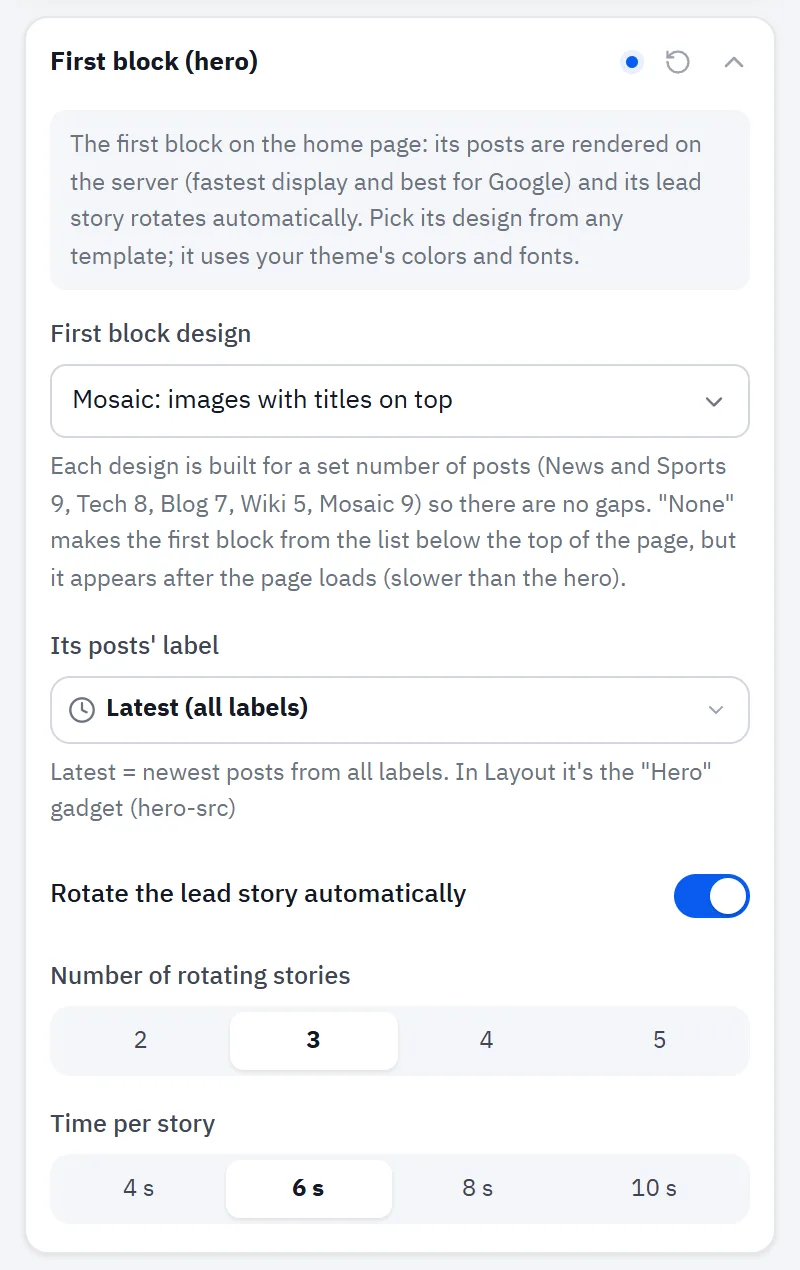
- First block design✓Current template designNewsSportsBlogTechWikiMosaicApp storeNone
-
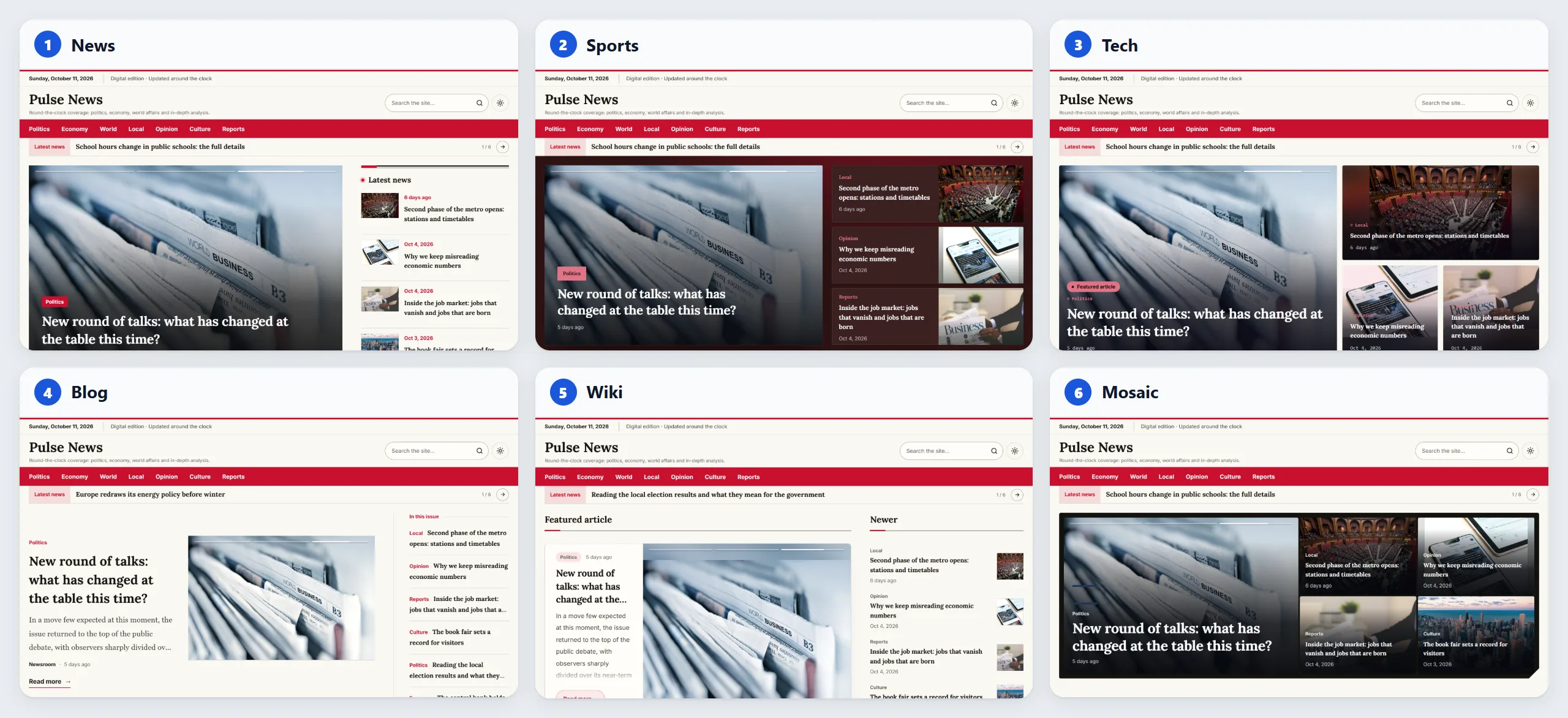
The shape of the first block. The options, as the panel shows them:
"News: big lead story + side headlines", "Sports: night poster + side cards", "Blog: cover + index", "Tech: Bento tiles + numbered index", "Wiki: featured article + latest", "Mosaic: images with titles on top", "App store: an Editor’s pick with a large icon + just added", and "None (blocks start at the top of the page)".
Each design is built for a set number of posts so there are no gaps: News and Sports 9, Tech 8, Blog 7, Wiki 5, Mosaic 9. "None" makes the first block in your list the top of the page, but it appears after the page loads, so it is slower than the hero. Default: current template design. A design from another template is paid-only.
- Its posts' labeldefault: Latest
- Where the first block's posts come from. "Latest" means the newest posts from all labels. Or pick one label, such as "Featured", to show only its posts.
- Rotate the lead story automaticallyon by default
- The big story changes by itself every few seconds, so visitors see several important stories without scrolling.
- Number of rotating stories2✓345
- How many stories take turns in the lead spot.
- Time per story4 s✓6 s8 s10 s
- How long each story stays before the next one.
In Layout: the first block has a gadget called "Hero" in the "Hero (first screen)" area. Its content is one line such as "Label: Featured"; leave it empty for the latest posts. The block's design and rotation can only be changed from the extension.
Home blocks: add, reorder and edit
The "Home blocks (from the second block on)" group holds a list of all blocks in the order they appear. Above the list, a status line shows your blog's label and post counts, such as "12 labels on your blog · 340 posts", with a Refresh button for when you add new labels.
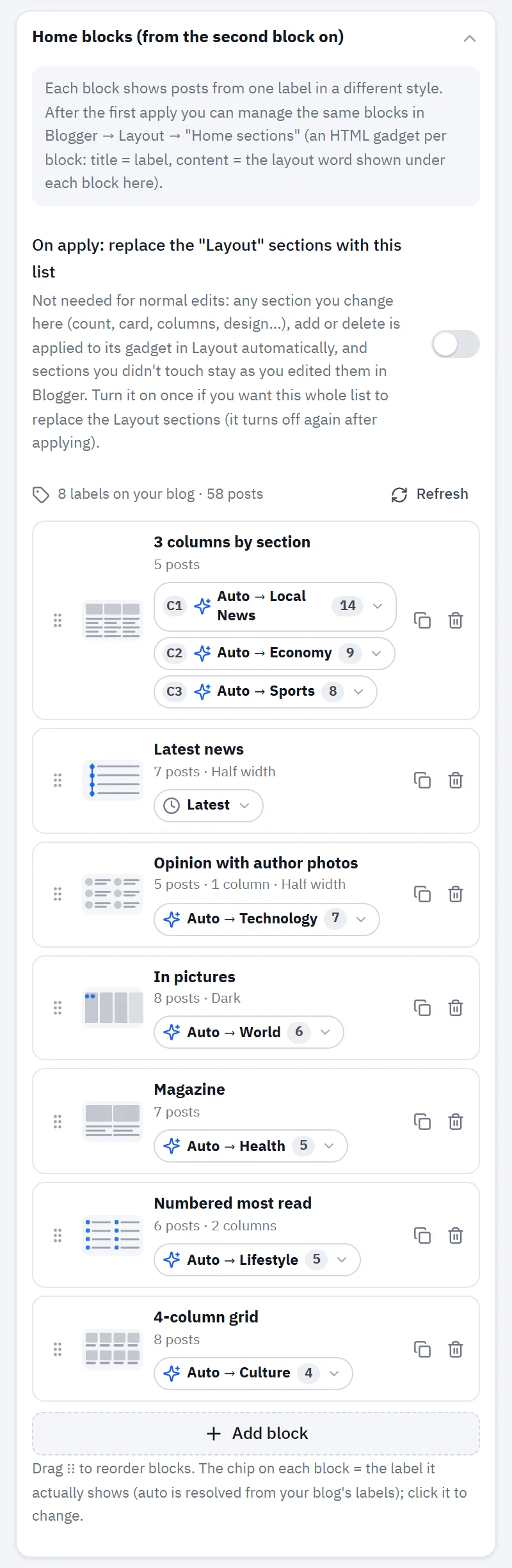
A collapsed block
- Drag handle ⋮⋮: drag a block up or down to reorder it, or use the arrow keys.
- Thumbnail and title: a picture of the layout, then the block's title (or the layout name if you didn't write a title).
- Summary line: number of posts, columns, "Half width", "Dark" or "Tinted", and "… design" when it borrows another template's look.
- Label chip: the label the block actually shows. Click it to change it (see the next section).
- Two tools: "Duplicate block" copies it as is; "Delete block" removes it.
At the end of the list, Add block opens the gallery "Add a block: choose its layout".
An open block
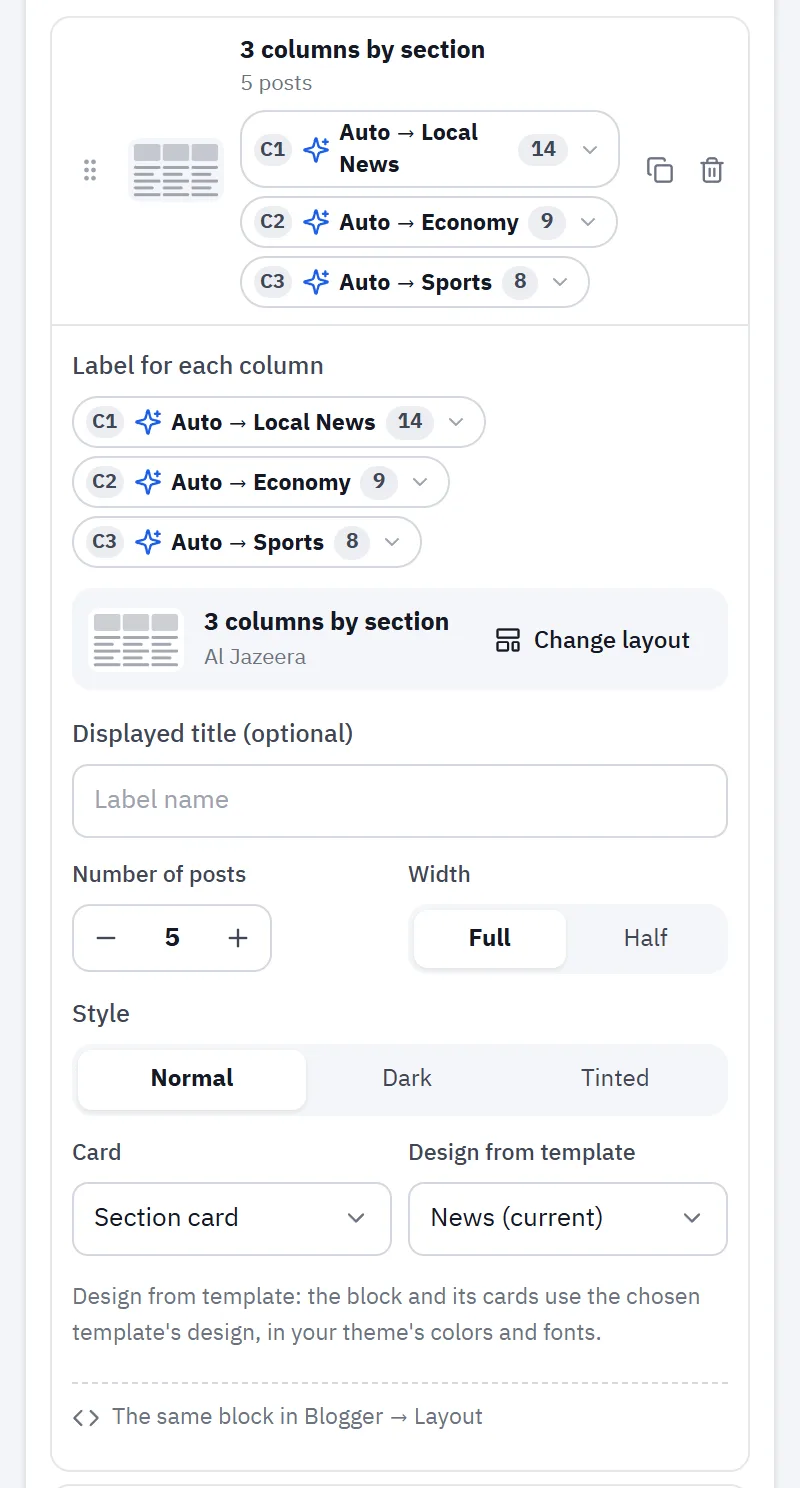
- Label to showor "Tabs" / "Label for each column" / "Labels"
- Where the block's posts come from. The field changes with the layout: a "Tabs" block takes one label per tab (up to 6 tabs; add with "Tab", remove with "Remove tab"), a "3 columns by section" block takes one label per column (C1, C2, C3), and "Sections from labels" takes several labels. "Label portals" shows "All labels (a card per label)". Default: Auto.
- Layout
- The current layout's picture and name, and Change layout, which opens the "Choose a block layout" gallery of 24 layouts (full list).
- Displayed title (optional)
- The heading above the block on your blog. Leave it empty to show the label name.
- Number of posts
- 1 to 20. Each layout has a default that suits it (for example Grid 6, 4-column grid 8, Numbered most read 10). For "Sections from labels" the field becomes "Number of sections", and for "Label portals" "Number of portals" (1 to 12 for both).
- Width✓FullHalf
- Two consecutive "Half" blocks sit side by side in one row on wide screens, and the theme balances their heights. On phones each one takes the full width.
- Columns on desktop✓Auto123456
- Shown only for layouts made of even rows: Grid, 4-column grid, Full-width colored band, Tabs, Wide image row, Compact list, Numbered most read, Opinion, Stream and Portals. If the count leaves an incomplete last row (say 7 posts in 3 columns), the theme switches to the nearest column count that gives full rows, and the panel tells you so.
- Style✓NormalDarkTinted
- The block's background: normal, dark, or a light tint of your brand color. Useful to separate blocks and break the rhythm.
- Carddefault: Section card
- How each post looks inside the block (14 cards).
- Design from templatedefault: current template
- "Design from template: the block and its cards use the chosen template's design, in your theme's colors and fonts." For example a Tech-style block on a news blog.
- The same block in Blogger → Layout
- A fold-out showing the block's gadget title and content exactly as they will appear in Layout, with a Copy button. Handy if you want to build the same block by hand in Blogger.
Where posts come from: labels and Auto
Click the label chip on any block to open the picker. It has a search box, "Search your blog's labels or type a name…", four special choices at the top, then your blog's labels, each with its post count and "Block N" if another block already uses it.
- Auto
- "The theme picks from your labels with the most posts." It takes the first label not used by another block, among labels with at least 3 posts, biggest first. Good for a new blog that will grow.
- Latest
- "Newest posts from all labels."
- From the archive
- "Older posts at random": brings good older posts back instead of leaving them buried on the last pages.
- Most read
- "From Blogger stats": the most-read posts of the month, then of all time, up to 20, minus the ones shown above the block. If your blog has few posts, only what exists is shown.
- A label name
- Pick any label from the list. You can also type a name that doesn't exist yet and choose "Use “…”" (marked "Not on your blog yet") to prepare a block for a label you will publish in soon.
A new tab in a "Tabs" block offers only Auto and Latest from the special choices, plus any label.
What the chip tells you
| Chip | Meaning |
|---|---|
| Auto → Sports | The block is on Auto, and this is the label the theme picked for it right now. |
| Auto → Latest | No suitable label is left, so the block shows the latest posts. |
| Auto → no labels left | All suitable labels are used by other blocks. |
| "…" isn't on your blog → … | Warning: the label you typed isn't on your blog (or is spelled differently). The arrow shows what will appear instead. |
A label you pick is reserved for its block. Auto blocks never take a label another block chose, so sections don't repeat. "Label portals" don't use up any label. A "Sections from labels" block that finds no unused label hides itself, and the panel warns: "No labels left for the sections (all used by the blocks above) — this block will be hidden".
The 24 layouts
These are all the layouts in the "Choose a block layout" gallery, with their panel names, default post count and what visitors see.
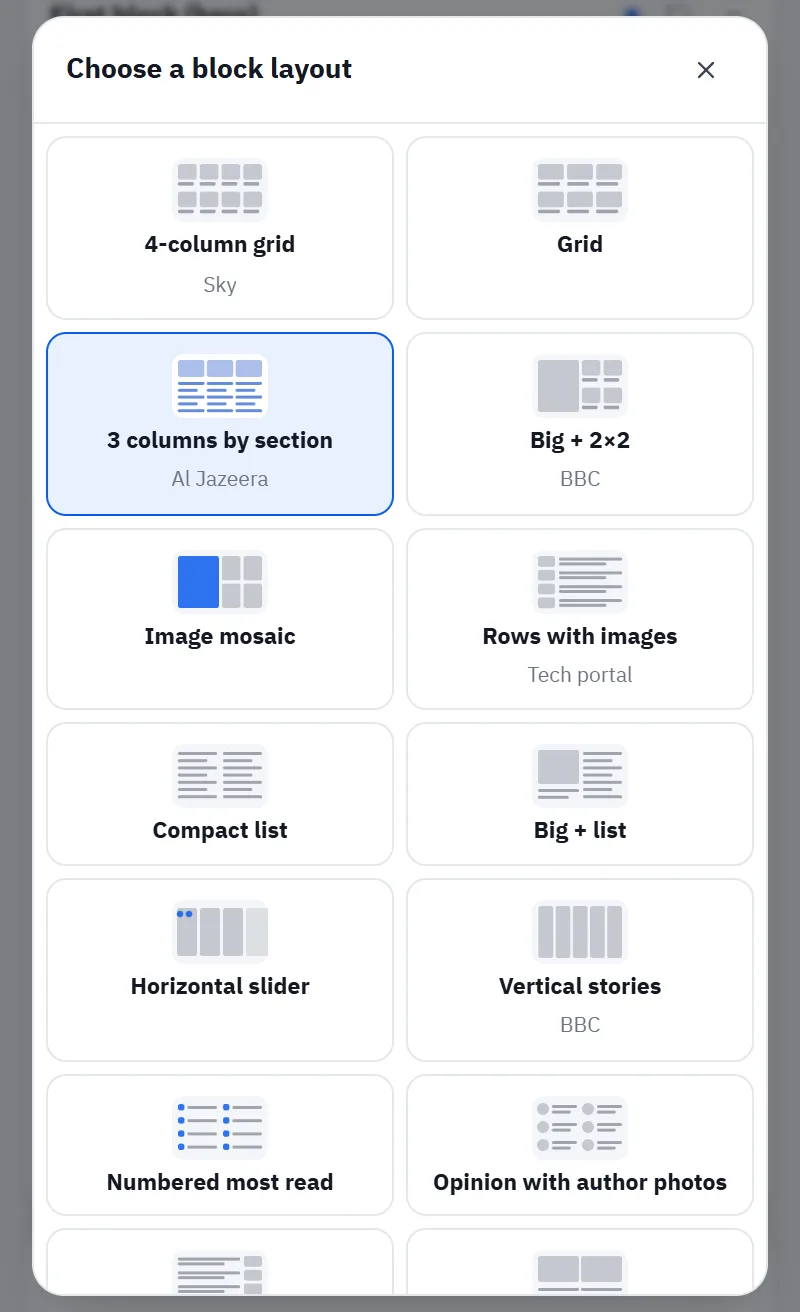
Cards and "Design from template"
A card is how a single post looks inside a block. Pick it from the "Card" field of an open block:
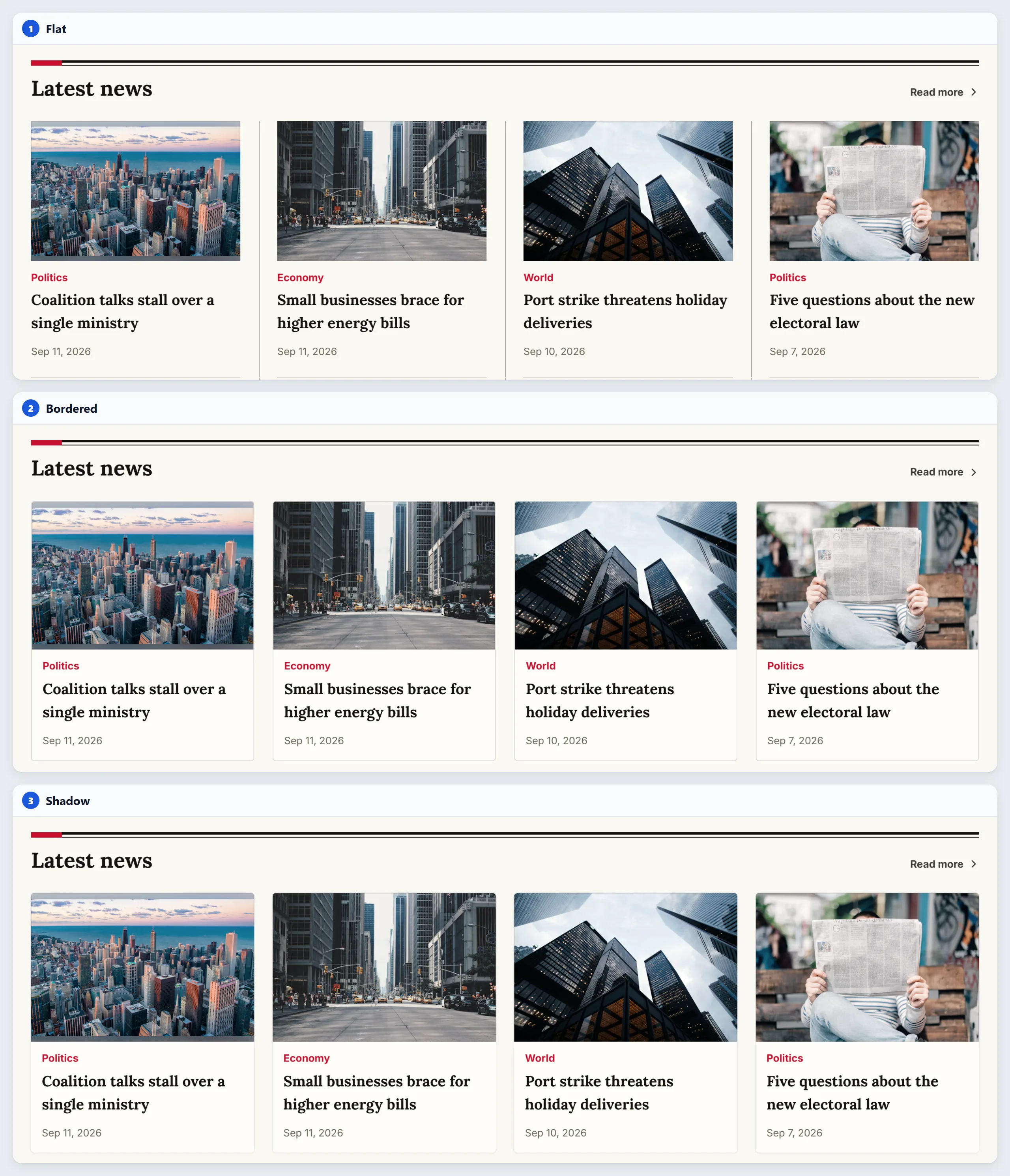
When does the card apply? In layouts made of one kind of card, such as Grid, Horizontal slider and the lists. Mixed layouts ("Big + 2×2", "Image mosaic", "Big + list", "Magazine", "Video wall", "3 columns by section", "Encyclopedia box", "Spotlight") keep their own card mix; only the App card replaces it. When you pick a card from another template (say "Story (Blog)" on a news blog), "Design from template" switches to that template automatically, so the card keeps its original design.
Blocks in Blogger's Layout
After the first apply, open Blogger → Layout. You'll find the "Home sections" area with one HTML gadget per block, in the same order:
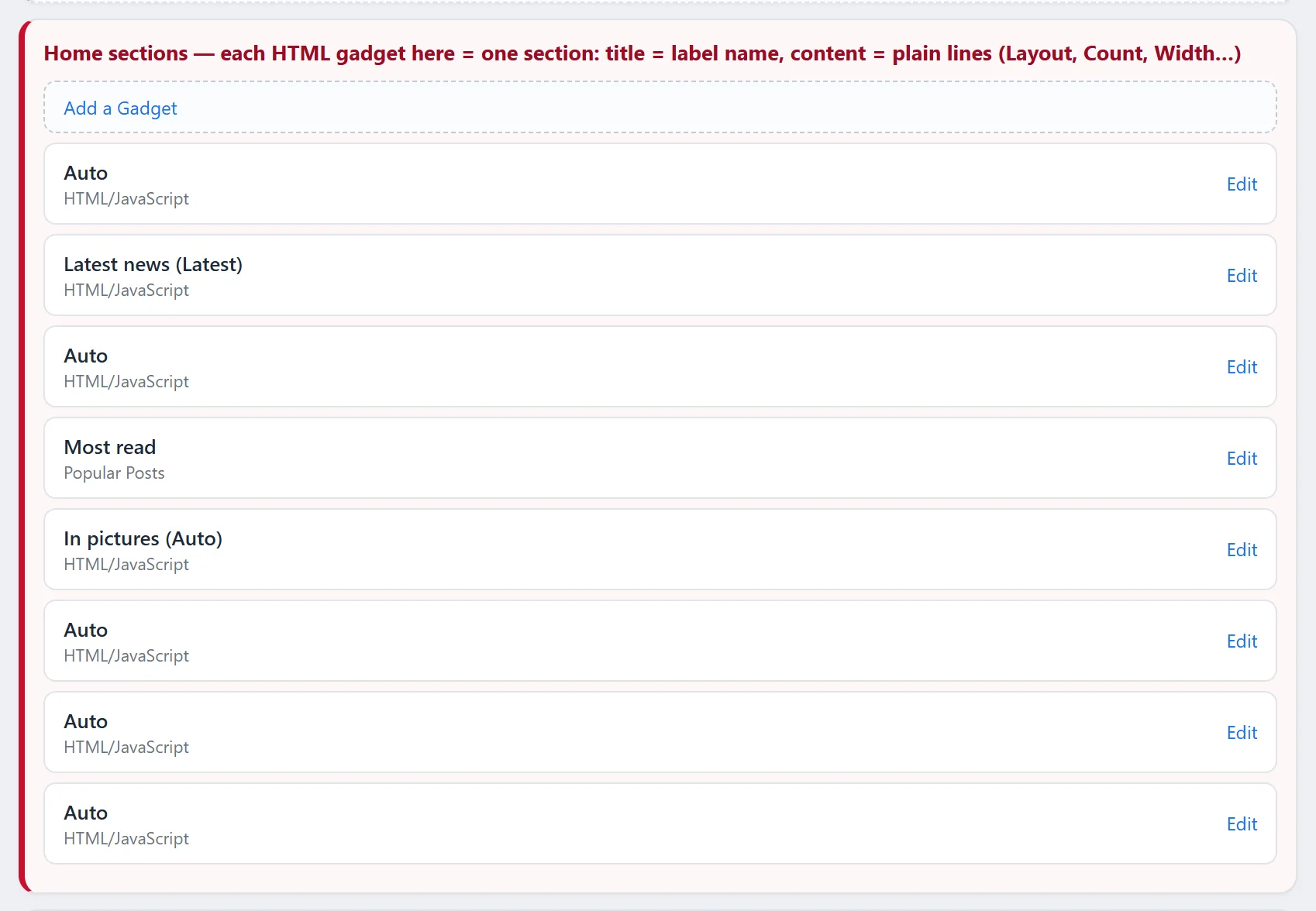
- Gadget title: the label the block shows, or a special word: "Auto", "Latest", "Archive" or "Most read". If you gave the block a displayed title, it becomes "Title (label)". Tabs and column blocks list their labels separated by commas.
- Gadget content: plain lines, one per property. On an English blog they read "Layout: grid", "Count: 6", "Width: half", "Style: dark", "Columns: 3", "Card: compact", "Skin: tech". On an Arabic blog the same lines are in Arabic. Below them, help lines starting with "—" list every allowed word; the theme ignores them.
- Layout words: grid, grid4, list, listthumb, split, featured, mosaic, carousel, shorts, ranked, opinion, stream, magazine, masonry, herorow, timeline, tabs, videowall, band, trio, wikibox, spot, sections, portals.
- Hide a block for now: turn off "Show this gadget" instead of deleting it.
| What happened since the last Apply | What happens to the block gadgets in Layout |
|---|---|
| You edited a block in the panel (count, card, columns, design…) | Its gadget is rewritten with the panel settings. |
| You added or deleted a block in the panel | Its gadget is added to or removed from Layout. |
| You didn't touch the block in the panel | It stays as you edited it in Blogger. |
| You turned on "On apply: replace the "Layout" sections with this list" | The whole panel list replaces the Layout sections, then the switch turns itself off after the apply. |
You don't need "On apply: replace the "Layout" sections with this list" for normal edits. Use it once only if the Layout sections have drifted far from the panel and you want them to match again.
"Most read" data: blocks whose source is Most read take their posts from a separate "Most read" gadget based on Blogger stats, in its own Layout area. That gadget isn't shown to visitors; you set its period and number of posts there.
Motion, page numbers, breaking ticker and wiki texts
Motion
All motion in Nabd is CSS only, with no JavaScript, so it doesn't slow the page. It pauses on mouse hover and is turned off automatically for visitors who enabled "Reduce motion" on their device. The first block's rotation is set in its own group above.
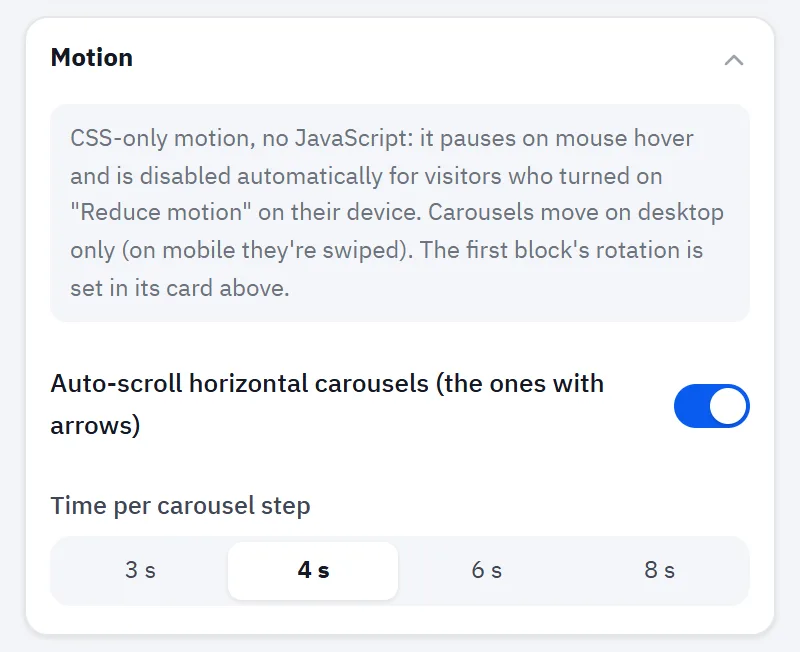
- Auto-scroll horizontal carousels (the ones with arrows)on by default
- Blocks that move with arrows, like "Horizontal slider", step forward by themselves every few seconds. Desktop only; on phones visitors swipe them.
- Time per carousel step3 s✓4 s6 s8 s
- The time between one step and the next.
Pagination
- Page numbers (1 2 3 … Next)on by default
- Page numbers instead of "Newer / Older" at the bottom of the home and label pages, so visitors see how many pages there are and can jump to any of them. Keyword search results and archives keep Newer/Older. A label that fits on one page shows no pager at all.
Breaking news ticker (News header only)
This group appears when the header in use is the News header: on the News template, or when you borrow the News header for another template (Header, menu, footer and sidebar).
- Show breaking news tickeron for the News template
- A moving strip under the header with your breaking headlines.
- Breaking news labeldefault: "Breaking" ("عاجل" on Arabic blogs)
- "Posts with this label appear in the ticker". If the label isn't on your blog yet, the panel warns: "The ticker shows "Latest news" until you add this label to your breaking posts."
- Number of stories
- 1 to 12. Default: 6.
In Layout you'll find the "Breaking ticker" gadget with two lines: "Label: Breaking" and "Count: 6".
Wiki texts (Wiki template only)
- Featured article (optional HTML)
- The text of the "Featured article" box on the home page. Leave it empty to let the theme pick the newest entry.
- Fixed headings and words
- "The small fixed headings on wiki pages", with these defaults: "Latest entries", "View all", "Portal", "Newest entry", "Last added", "Related categories", "Other portals" and "From". Change them to suit your encyclopedia.
The Sports template has no extra settings here; the match center has its own tab (Match center).
Quick recipes
Add a new home section for one of your labels
Open the blocks
In the Home tab, open "Home blocks (from the second block on)" and click Add block under the list.
Choose a layout
In "Add a block: choose its layout", pick one, such as "Grid". The block is added open at the end of the list.
Choose the label
Click the chip under "Label to show", search for your label and pick it. Type a displayed title if you want a name other than the label.
Place it and apply
Drag it by ⋮⋮ to where it belongs, then click Apply to blog.
Or straight from Blogger: in Layout → Home sections, click "Add a Gadget" and choose "HTML/JavaScript". Put the label name in the title and, in the content, "Layout: grid" with "Count: 6" on the next line, then save.
A row of two half-width blocks
Put the two blocks next to each other
Order two blocks so the second comes right after the first.
Set both to "Half"
Open each block and choose "Half" under "Width". Narrow layouts such as "Compact list", "Numbered most read" and "Timeline" suit half width.
Apply
On desktop they sit side by side with balanced heights; on phones each takes the full width. Always use half blocks in pairs: a single half block leaves an empty space beside it.
Show the most-read posts
Add a block in a suitable layout
"Numbered most read" fits best, but any layout works.
Choose "Most read" as the source
Click the chip, choose "Most read" from the special choices at the top, then apply. Posts come from Blogger stats, so your blog needs some visits before it fills up.
Turn on the breaking ticker
Check you have the News header
The ticker works only with the News header: the News template, or the News header borrowed for another template.
Turn it on and choose its label
In the "Breaking news ticker" group, turn on "Show breaking news ticker", keep the label or pick another, and set "Number of stories".
Label your breaking posts
When you publish breaking news, add that label to the post in Blogger. Until the label exists, the ticker shows "Latest news".
Troubleshooting
A block is empty or missing from the home page
Look at its chip in the panel. A "isn't on your blog" warning means the label name doesn't match the Blogger label exactly (same letters and spaces). A "Sections from labels" block also hides itself when the other blocks have used every label. Pick another label or reduce the blocks that reserve labels.
I edited a block in Layout and it went back after Apply
You also changed the same block in the panel, and panel settings overwrite Layout on apply. Edit each block in one place only.
I chose 4 columns and got 3
The post count doesn't fill complete rows of four, so the theme chose the nearest column count that does. Use a count that is a multiple of the columns (4, 8 or 12).
I changed the card and the block looks the same
Mixed layouts such as "Big + 2×2", "Magazine" and "Image mosaic" keep their own card mix. Switch to "Grid" or "Horizontal slider" to see the card you picked.
I can't edit the blocks in the panel
During the free trial the block editor is locked under "Editing and reordering home sections — paid version". It unlocks as soon as you activate your license.
The lead story doesn't rotate
Check that "Rotate the lead story automatically" is on. Rotation pauses while the mouse is over the block, and is off for visitors who enabled "Reduce motion" on their device.
The breaking ticker doesn't show
The group appears only with the News header. Check that "Show breaking news ticker" is on and that you clicked "Apply to blog".