
Turning on click-to-edit
Open the preview
On Blogger: click Preview at the top of the Nabd panel and your blog opens in a tab. On WordPress: the preview sits next to the settings on the Nabd panel page.
Click any part
Move the mouse over your blog: each part gets an outline and its name. Click it and the panel opens that part’s card with its settings. Clicks don’t follow links while you’re editing.
Edit, then apply
Most changes appear in the preview right away. When you’re done, click Apply to blog (or “Apply to site” on WordPress) so visitors see them.
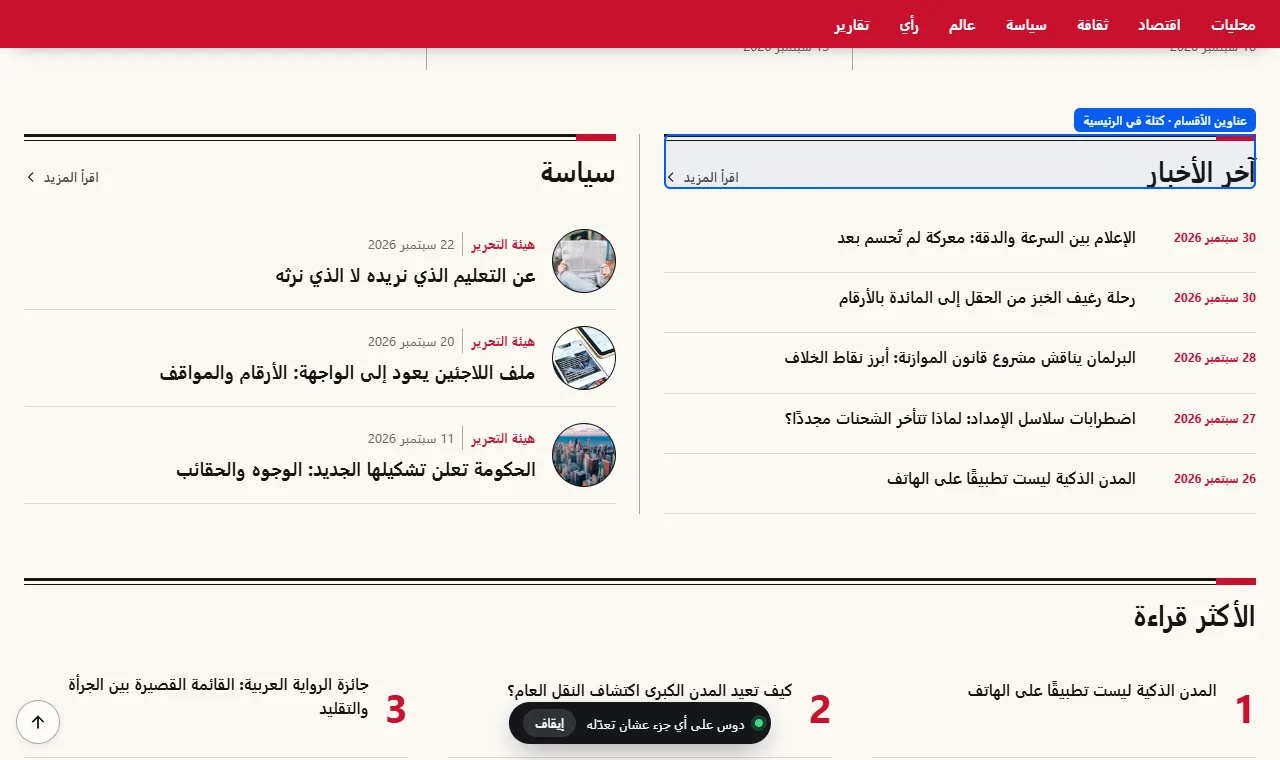
A small bar at the top of the panel shows that click-to-edit is on. It has a Stop button so you can browse normally, and a To preview button to jump back to the preview tab. Esc also stops editing from inside the page.
Nothing changes on your blog until you click “Apply”. The preview shows your edits on your device only, and the selection script never reaches visitors, so it doesn’t affect your blog’s speed.
The part card: what’s in it?
- The part’s name and place: for example “Post title” or “Section 3 on the home page”. If you click a part inside a bigger one (a title inside a section, say), buttons let you move up to the bigger part.
- “The text you clicked”: if you click a theme word like “Featured”, “Read also” or “Latest”, its field is at the top of the card so you can type your own wording.
- “Look”: the part’s colors, sizes and visibility (details in the next section).
- “Settings”: the part’s own settings from the tabs, such as the header type or how many posts a section shows.
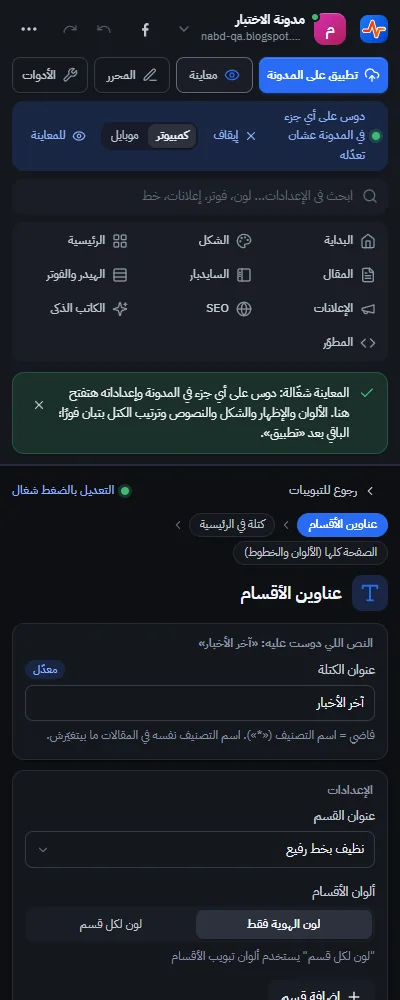
Settings that don’t show up instantly in the preview carry an “After applying” badge, so you know you’ll see them after clicking “Apply”.
“Look”: colors and sizes in ready-made steps
Each part gets only the tools that suit it, and they’re all ready-made steps that match the theme, so whatever you pick won’t break the design:
- Visibility by device: “On all devices”, “Hidden on mobile” or “Hidden on desktop”, for almost any part.
- Background, title and accent colors: the color you pick is for light mode. In dark mode it’s blended automatically so you don’t get a bright patch, and the panel warns you if text would be hard to read on the background.
- Size: “Smaller”, “Default”, “Larger” and “Much larger” for section titles, the post title and the post text.
- Line spacing for the post text, and space above the section for home sections.
Everything you change in “Look” is gathered in the “Look” tab → “Look of each part” group, where you can reset any part to its default.
Changing the theme’s words
Every fixed word the theme writes can be changed: “Read also”, “Latest”, “Featured”, “Readers say”, “Back to top”, the footer, search, 404 page and match center texts, and more.
- By clicking: click the word itself in the preview and type the replacement in “The text you clicked”.
- From the list: the “Look” tab → “Theme texts” has every text, a note saying where each one appears, and a search box.
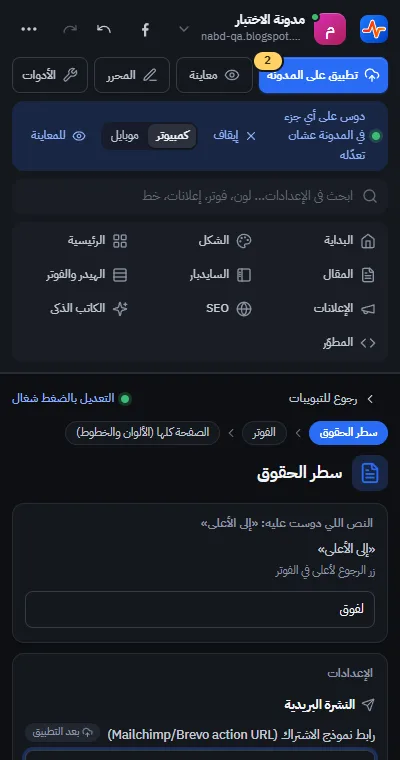
Texts are saved per language: if your blog is in English, you edit the English texts. Leave a field empty to go back to the original. In “Reading time”, keep {n} where the number of minutes goes.
A home section’s title (like “Latest” above a section) belongs to that section, so changing it from the section’s card changes that section only, not every place that says “Latest”.
Home sections: title, look and order
- Click a section to open its card: its visible title, label, post count and its own look (background, accent color and spacing for this section only).
- Reorder with the arrows: each section has up and down arrows, or drag it in the sections list in the “Home” tab. The new order shows in the preview right away.
- A section’s look moves with it when you reorder, and it doesn’t touch your own edits in Blogger → Layout.
Editing right on the page
Type over the text
Double-click a section title or a theme word like “Read more” and it turns into a typing field in place. Type, then press Enter to save or Esc to cancel.
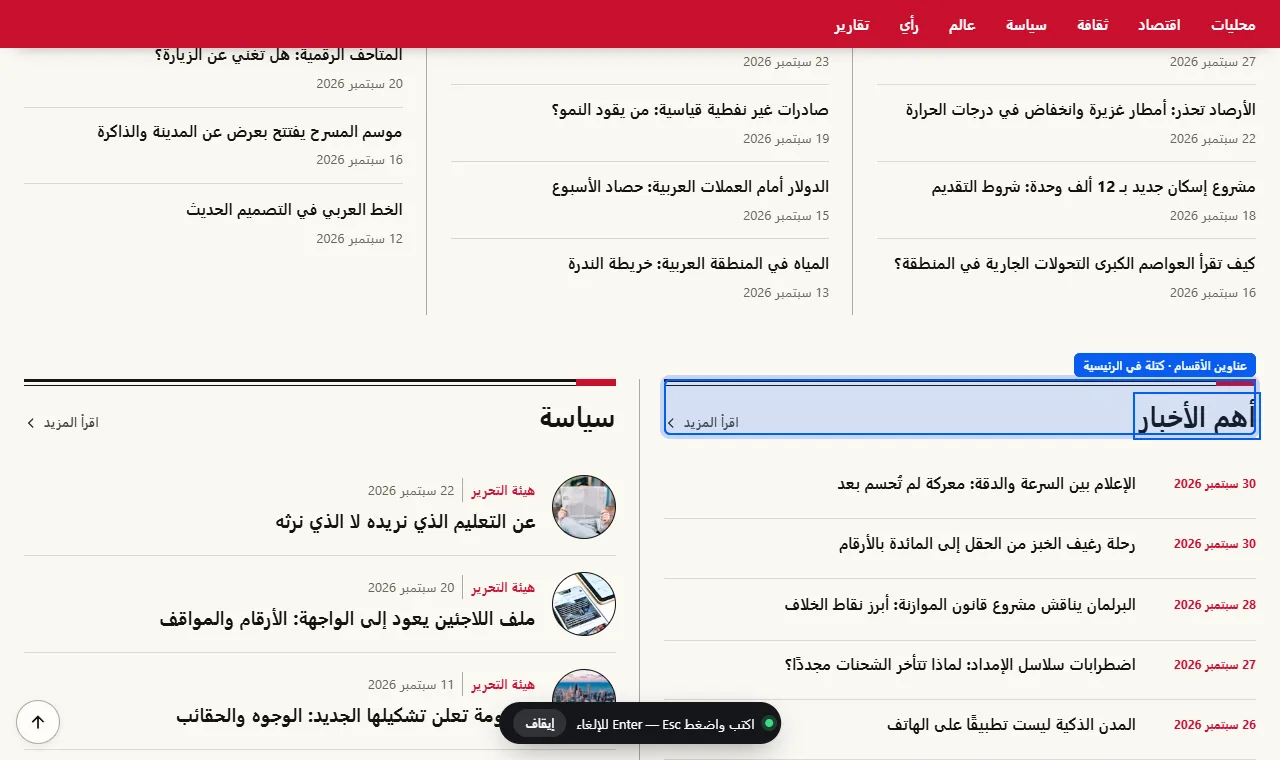
If the text comes from your own content (a post title or a label) or has other parts inside it like a date and the site name, the part card tells you where to edit it.
Reorder sections by dragging
Hover over any home section and a Drag to move button appears above it. Drag it up or down: a blue line shows where it will land, and the page scrolls by itself at the edge of the screen. Side-by-side half-width sections can be swapped left and right.
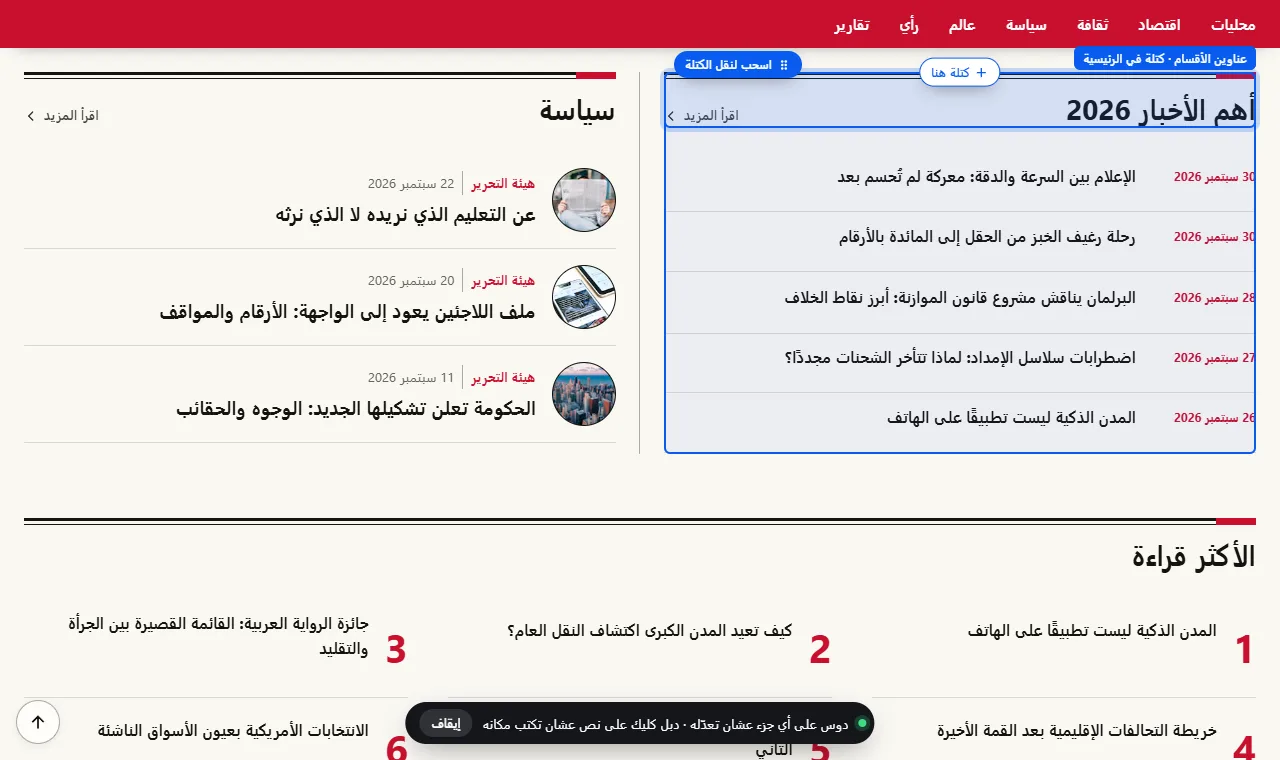
Add a section exactly where you want it
The + Section here buttons above and below a section open the section gallery in the panel. The new section is added at that exact spot and its card opens so you can pick its label. Its content shows after “Apply” or with “Full preview”.
All of this can be undone with Ctrl+Z like any other change. Layout gadgets you added in Blogger (like “Most read”) are reordered from Blogger.
Previewing on mobile
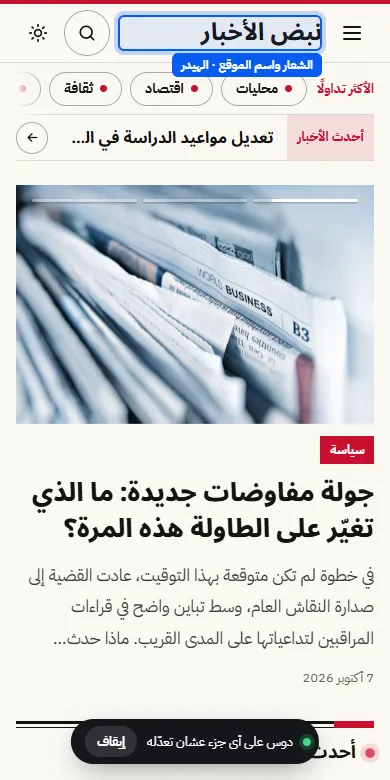
In the editing bar, choose Mobile: your blog opens in a phone-width window with the real mobile layout (collapsed menu, sections stacked). Click-to-edit works there just like on desktop, so you can, for example, hide a part on mobile only and check the result. Desktop takes you back to the normal tab.
Full preview: see everything before “Apply”
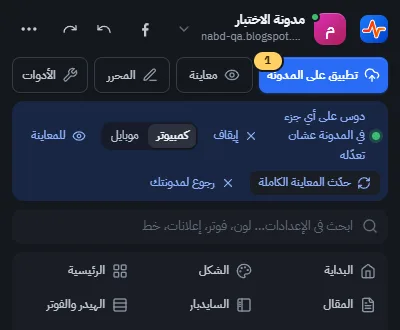
Some settings change how the theme itself is built, like the hero type, the label and post count of sections, a header or footer from another theme, and the menu. They don’t show up instantly and carry an “After applying” badge. To see them before you apply, click Full preview in the editing bar.
- Your blog is drawn in the preview tab with all your current settings and its real posts, and click-to-edit works on it as usual.
- Move between the home page, posts and sections and full preview stays on. After any new change, click Refresh full preview.
- Back to your blog shows the page as visitors see it now.
On WordPress: the same button is in the preview bar next to the settings, with Back to the site. It takes a few seconds because the Nabd server prepares a copy of the theme with your settings, shown only to you inside the preview.
The preview is in your browser only: visitors see the applied theme until you click “Apply”. Gadgets you edited yourself in Blogger → Layout show their default look here, and your edits to them are kept when you apply. Full preview needs your blog feed to be on (Settings → Site feed).
A different layout per page type or section
The “Post” tab has two new groups:
“Page layouts”
- Sidebar on posts, on static pages (About, Contact…) and on section and search pages: “Same as the general setting”, “None”, at the end of the line or at its start. The home page keeps its own setting.
- Featured image at the top of posts: “Shown” or “Hidden”. The image stays on cards and social shares, and the first image inside the post stays visible.
“Posts of a specific section”
Click Add section, pick a label, then set its sidebar and featured image. For example, “Sports” posts without a sidebar and “Opinion” posts without a big image on top. A post’s section is its first label (the one shown above its title). Sections you don’t add follow “Page layouts”.
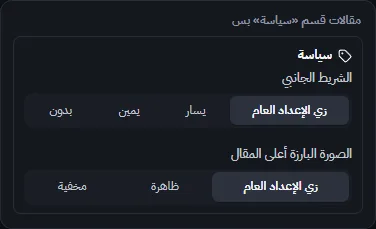
The quickest way: open any post in the preview and click the sidebar or the title. The card has “Only posts in …” with the options for that post’s section.
Which setting wins: a single post’s “Post options” first, then its section’s setting, then “Page layouts”, then the general “Sidebar position”. It’s all done with CSS, so the page doesn’t jump and no extra script loads.
Options for a single post in the Nabd editor
In the Nabd editor, in the post column under “Featured image”, the “Post options” group applies to the open post only:
Pick what you need, then send the post to Blogger as usual. The options are saved in a hidden marker at the end of the post that the Nabd theme reads, so they stay with the post when you open it for editing later. Handy for a landing page, a sponsored post or a short post that doesn’t need every part.
On WordPress: the same options are in the post editor, in the “Nabd layout” panel of the sidebar (or the “Nabd SEO” box in the classic editor), and they’re saved with the post when you click “Update”.
Tools that make editing easier
- Undo and redo: two buttons at the top of the panel, or Ctrl+Z and Ctrl+Y. They undo any change, even before “Apply”.
- “Simple” and “All settings”: simple mode shows only the main settings for beginners, and one click shows everything.
- Search: type what you want in your own words, like “header color”, “hide comments” or “font size”, and the setting appears even if its name is different.
FAQ
I clicked a part and its card didn’t open
Check that the bar at the top of the panel says click-to-edit is on, not stopped. On WordPress, if selecting doesn’t work in the preview, click “Apply to site” once so the theme updates, and make sure the Site Address and WordPress Address (Settings → General) are on the same domain.
I changed a setting and it didn’t show in the preview
If it has an “After applying” badge, it changes the theme itself, like the hero type, the menu or the ads. See it before applying with the “Full preview” button in the editing bar.
Does visual editing slow my blog down?
No. The selection tools run only in your preview, and what you choose becomes a few lines of CSS inside the theme. If you don’t change anything in “Look”, no lines are added.
I hid the featured image. Does it disappear from Google and social media?
No. It’s hidden from the top of the post only, and it stays on cards, in the post’s data for search engines and in the share image.
I reordered the sections and their gadgets moved in Layout
That’s intended: each section is a real gadget in Layout → Home sections, and “Apply” orders them the way you ordered them in the panel.