
Two tabs for everything around the post
The header, footer and sidebar appear on every page of your site, so visitors see them more than anything else. In the panel they live in two tabs:
- “Header and footer”: the header and footer design (even one from another template), the logo and name, the main menu and mega menu, header buttons, the footer with its links and columns, and your social accounts.
- “Sidebar”: where the sidebar goes and how it looks, the “Follow us” tiles, the tabbed box (Most read, Recent, Comments) and Recent comments.
Most of what is in these tabs is also a real gadget in Blogger’s Layout: the menu, social accounts, footer links, newsletter, “Follow us”, “Most read” and so on. You can edit them in either place.
Which one wins? A value you type or change in the panel is written into Layout when you Apply. If you leave a field empty in the panel, whatever is in Layout stays as it is.
During the trial: two features here are locked and marked “paid version”: “Header and footer designs from other templates” and “Custom menu and mega menu”. In the trial only the automatic menu works and the mega menu is off. Every other setting is fully available.
A header or footer from any template
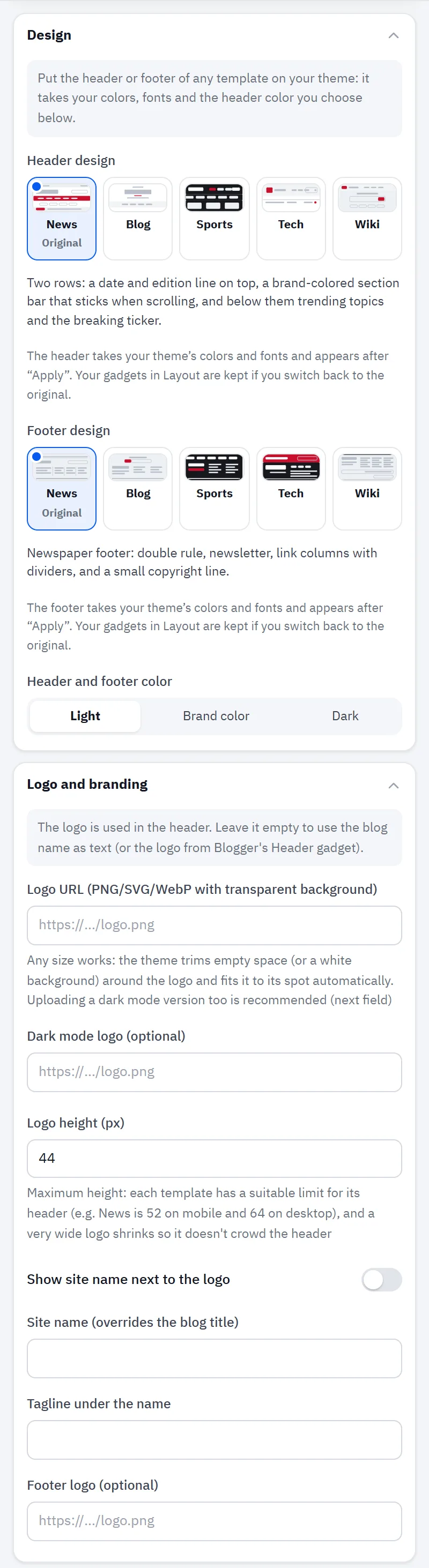
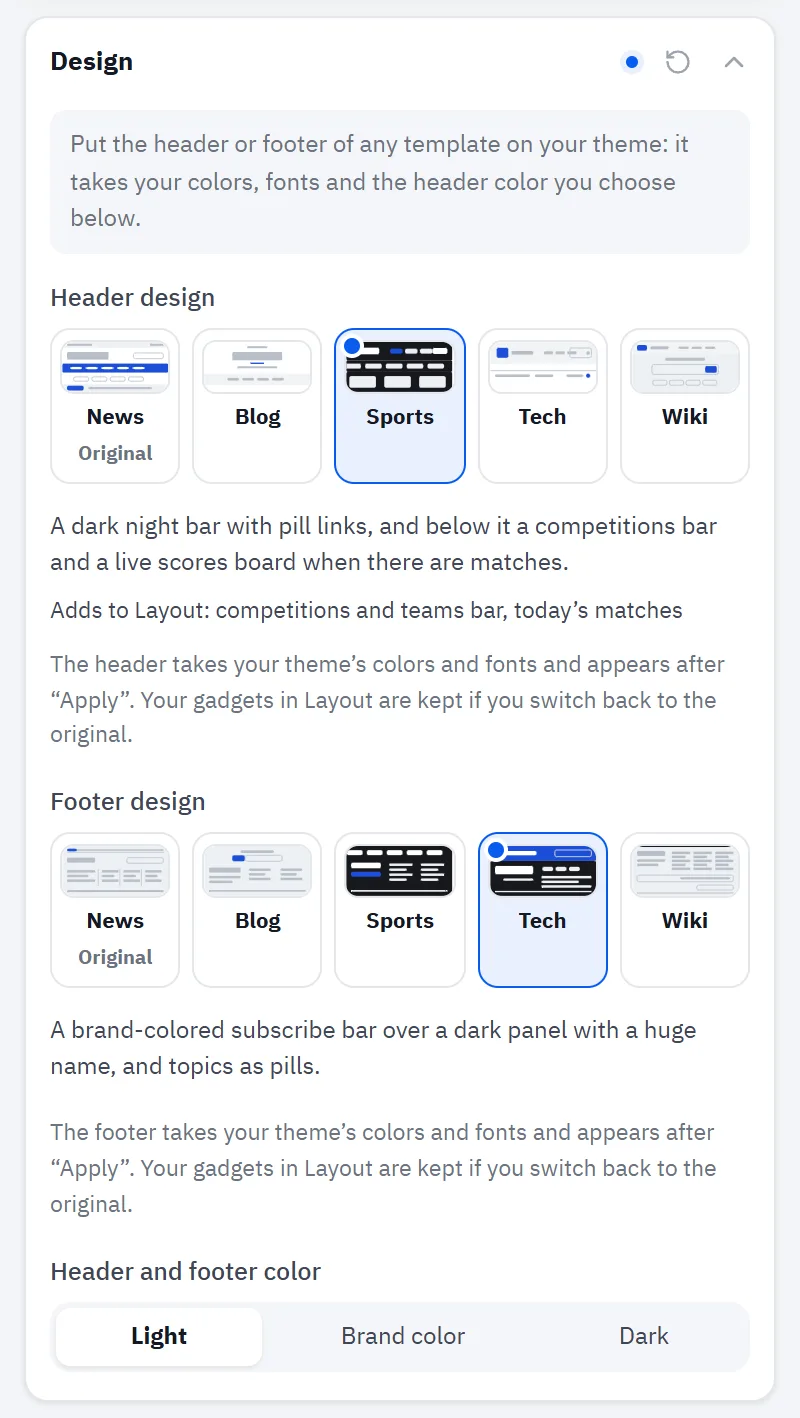
The first group in the tab is “Design”. It has five header cards and five footer cards, drawn in your colors. Your current template comes first, tagged “Original”. Pick any other card to put that template’s header or footer on your site, in your own colors and fonts.
Header designs
Footer designs
- Header design / Footer designpaid version
- The new design appears after Apply. Some headers add gadgets to Layout, and an “Adds to Layout” line tells you which when you hover a card: the News header adds “edition line, trending, breaking source”, Sports adds “competitions and teams bar, today’s matches”, and Wiki adds “portals”. If you switch back to “Original”, your Layout gadgets are kept.
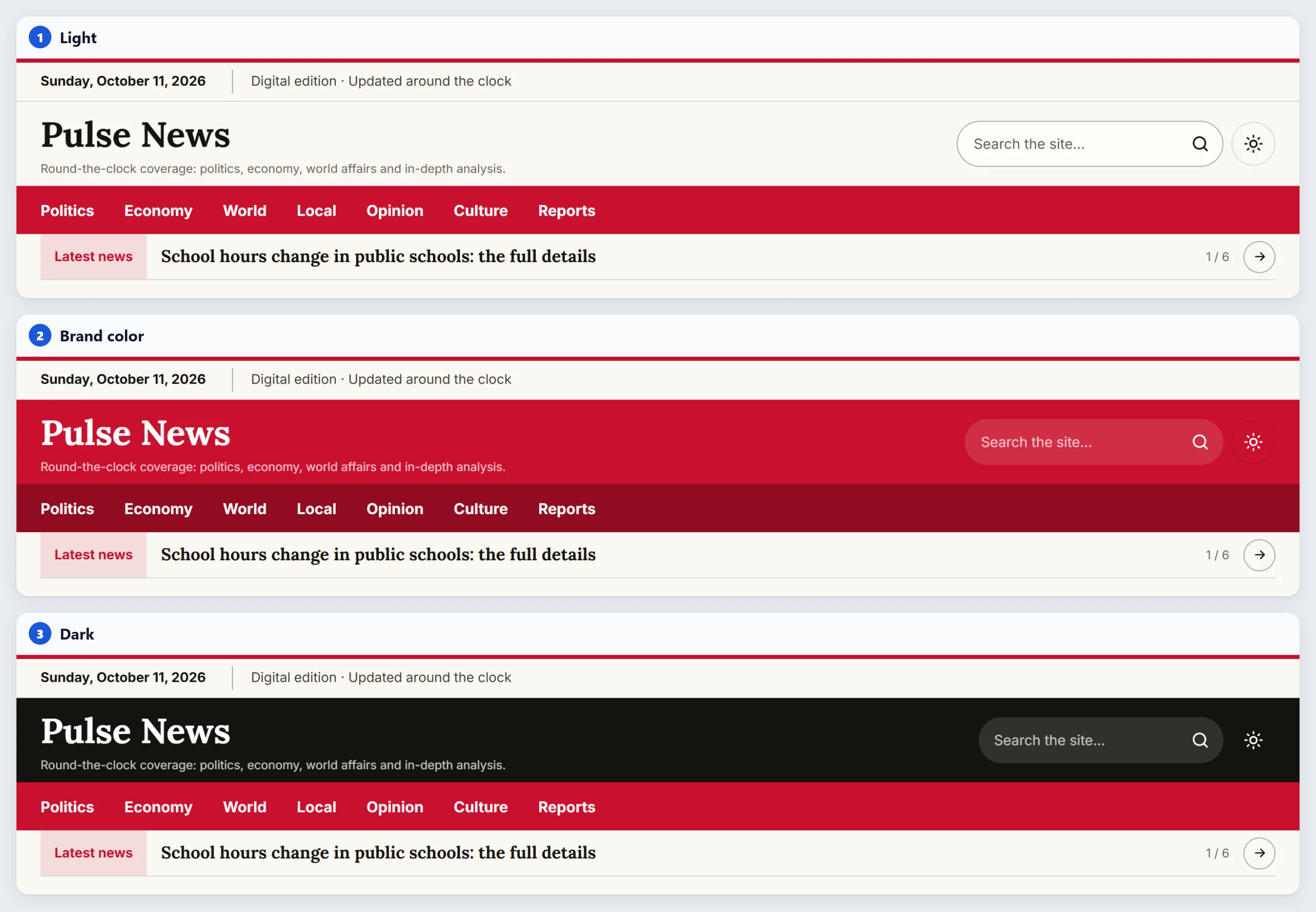
- Header and footer color✓LightBrand colorDark
- The background of the header and footer together. Default is Light; the Sports template uses Dark. This is the same setting as in the Design tab, so changing it in one place changes it in the other.
Features follow the header: the breaking ticker and the top bar come with the News header; the scores board and the Matches tab come with the Sports header. That is why some settings appear or disappear depending on the header you use. Switching template in the Start tab resets the header and footer to “Original”.
Logo and branding
Leave the logo field empty to show the blog name as text (or the logo from Blogger’s Header gadget). If you add a logo, its size doesn’t matter: the theme trims the empty space or white frame around it and fits it to its spot automatically.
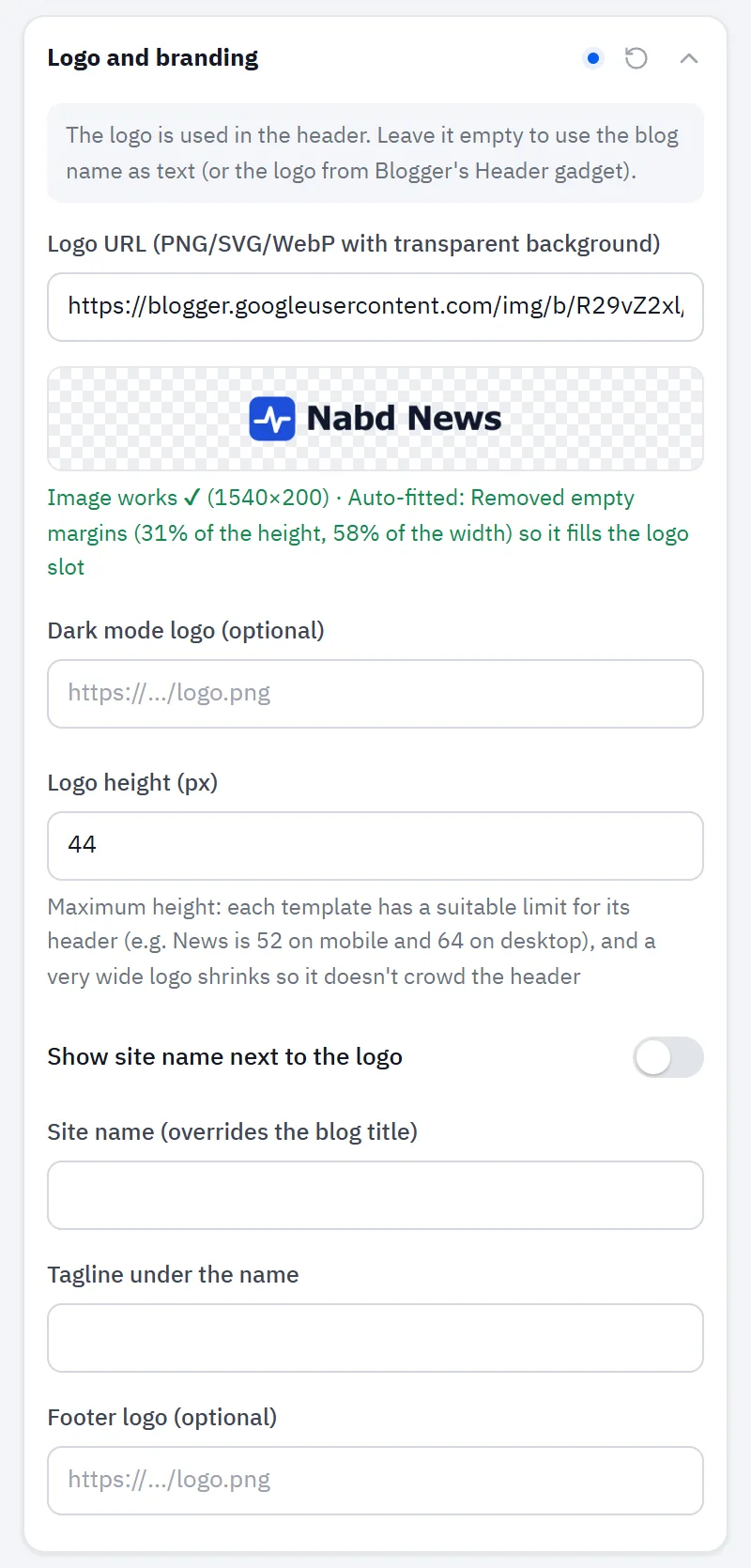
- Logo URL (PNG/SVG/WebP with transparent background)
- A direct image link. Below it you see “Image works ✔” with the size, then a line such as “Auto-fitted: Removed empty margins…”. Share links from Google Drive, Dropbox, imgur and GitHub are turned into direct image links. If you see “This link doesn’t show an image ✖”, upload the image to Blogger in a draft post and copy its link.
- Dark mode logo (optional)
- A light version of the logo, shown when the visitor uses dark mode. Recommended if your logo has dark ink.
- Logo height (px)
- 20 to 120, default 44. Each header has its own cap (for example News is 52 on mobile and 64 on desktop), and a very wide logo shrinks so it doesn’t crowd the header.
- Show site name next to the logo
- Off by default. Turn it on if your logo is a symbol without text.
- Site name (overrides the blog title)
- A name shown in the header instead of the Blogger blog title. Empty = the blog title.
- Tagline under the name
- A short line under the site name.
- Show taglineSports, Blog and Wiki headers only
- On by default. The News and Tech headers have no tagline by design, so this switch doesn’t appear with them.
- Footer logo (optional)
- A separate logo for the footer, such as a white version for a dark footer.
This logo is for the header. The square logo that Google sees, also used as the site icon, lives in the SEO tab (details).
Main menu: automatic or custom
At the top of “Menu items and mega menu” there is a switch with two options:
- Menu type✓Automatic — top labelsCustom — drag and drop
- Automatic: built from your labels with the most posts, and it updates itself with every new post. Custom: you build it from labels, pages, links and submenus. The custom menu is a paid version feature.
The automatic menu
- Number of labels in the menu
- 3 to 12, default 7. Above it, a preview shows the label names with each one’s post count.
- "Home" link first in the menu
- Adds a link to the home page at the start of the menu. Off by default.
- Edit it yourself (start from the current one)
- Switches you to the custom menu with your current labels already in it, so you don’t start from scratch.
In Layout you’ll find the “Auto menu (top labels)” gadget, a Blogger Labels gadget. Open it and choose “Selected labels” if you only want specific labels. The menu section also has a link list gadget called “Main menu”: if you add your own links there, your links show and the automatic menu hides.
The custom menu
Each item is a row with a ⋮⋮ drag handle, an icon for its type and its name. Click the name to edit it. Under the name, a line shows the type, such as “Label · 12 posts” or the page address.
- Order: drag ⋮⋮ up or down, or use the arrow keys.
- Submenus: drag an item to the right to put it under the item above it, up to two levels. Children move with their parent.
- Add buttons: Labels to pick several labels at once, Page to pick your blog’s pages, Link for a name and a URL starting with https:// or /, and Home.
- A heading without a link: leave the URL empty and the item becomes a heading that only opens its submenu.
- Delete: “Delete”, or “Delete (with its submenu)” for an item that has children.
The custom menu is saved inside the theme itself, so it appears instantly. On desktop, items that don’t fit are grouped under “More” automatically.
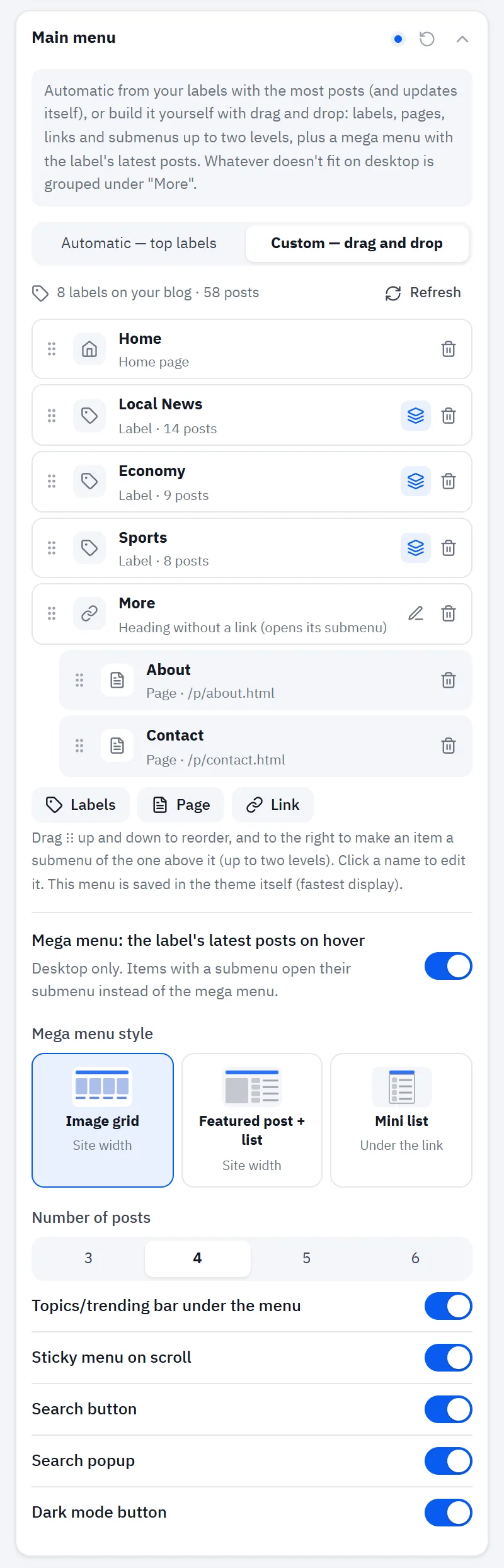
Recipe: a custom menu with a dropdown
Start from the current menu
In “Main menu”, click Edit it yourself (start from the current one). Your current labels appear as rows.
Add a heading for the dropdown
Click Link, type “Sections” as the “Display name”, leave the link empty, then click Add.
Add the children
Click Labels and pick the labels that go inside it. They appear at the end of the list.
Drag them under the heading
Drag each label so it sits right under “Sections”, then drag it slightly to the right. It moves in and becomes a child item.
Apply and test
Click “Apply to blog”. On desktop the dropdown opens on hover; on mobile an arrow next to “Sections” opens it inside the mobile menu.
The mega menu
The mega menu is a large panel that opens when the mouse hovers a label in the menu, showing its latest posts with images. It is desktop only. An item with a submenu opens its submenu instead.
- Mega menu: the label's latest posts on hoverpaid version
- On by default; off in the Blog and Wiki templates. When it is off, none of its code loads, so the site stays lighter.
- Mega menu style
- Three styles, shown in the gallery below. Default: Image grid.
- Number of posts3✓456
- How many posts the mega panel shows.
- Per-label mega menu
- In the custom menu, every top-level label without a submenu has a small button that turns the mega menu on or off for that label.
Header buttons and the top bar
Under the menu there are switches for the header’s parts. All of them are on by default:
- Topics/trending bar under the menuNews header only
- A line of trending labels under the menu. You pick its labels in Layout: the “Header: trending (labels)” gadget.
- Sticky menu on scroll
- The menu stays at the top of the screen while reading.
- Search button
- Search in the header.
- Search popup
- Search opens a window over the page that shows results as you type, and section buttons with post counts before you type. It also opens with the / key or Ctrl+K. When it is off, Blogger’s normal search is used.
- Dark mode button
- A button visitors use to switch between light and dark. The mode the site starts in is chosen in the Start tab.
Top bar (News header only)
- Top bar (date and social)
- A slim bar above the header. On with the News header.
- Date
- Today’s date in the top bar.
- Social icons
- Icons for your accounts from “Social networks”.
The breaking ticker settings are in the Home tab (Home chapter). Each header also has its own Layout gadgets: the “edition line” for News, the “competitions and teams bar” for Sports (up to 12 labels) and “portals” for Wiki.
The footer
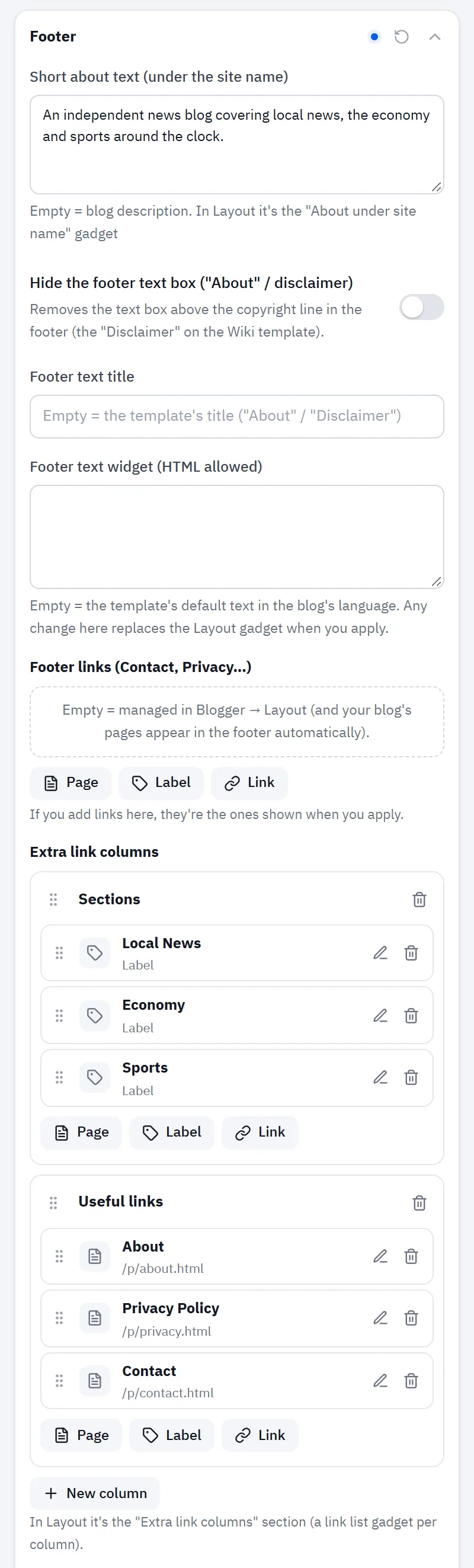
- Short about text (under the site name)
- A sentence or two about your site. Empty = the blog description from Blogger. Its Layout gadget: “Footer: about text under the site name”.
- Hide the footer text box ("About" / disclaimer)
- Removes the text box above the copyright line (on Wiki it is the “Disclaimer”). Off by default.
- Footer text title
- The text box title. Empty = the template’s title (“About” or “Disclaimer”). Shown only when the text isn’t hidden.
- Footer text widget (HTML allowed)
- The text box content. Empty = the template’s default text in your blog’s language. Any change here replaces the Layout gadget when you Apply.
- Footer links (Contact, Privacy…)
- Add with Page, Label and Link, drag to reorder, and edit or delete each link. Empty = managed in Layout, and your blog’s pages appear in the footer automatically.
- Extra link columns
- New column adds a column titled “Links”. Click the title to rename it, add its links, and drag the columns themselves to reorder them. In Layout each column is a “Link List” gadget inside the “Footer: extra link columns” section.
- Newsletter form URL (Mailchimp/Brevo action URL)
- The “action” URL of your newsletter service’s signup form. Empty = no newsletter. Its gadget: “Footer: newsletter”.
- Copyright text (overrides the default)
- Empty = automatic text with your site name and the current year. Its gadget: “Footer: copyright line”.
- Sections columnall footers except Sports
- A column with your site’s labels. The Sports footer has a leagues bar instead.
- Social icons
- Your account icons in the footer.
- "Back to top" button
- A button that takes the visitor back to the top of the page.
The “Nabd theme” link next to the copyright
Next to the copyright line there is a small “Nabd theme” link to the Nabd site (“قالب Nabd” on Arabic blogs). The link is part of the theme and there is no switch to hide it in the panel. If it is deleted from the template, the theme puts it back automatically; if the footer is hidden, it appears as a thin line at the bottom of the page.
Want it removed? Removing the link is a paid service, per blog. Contact us and we remove it for your blog from our admin panel.
The sidebar: position and look
The sidebar sits next to posts and label pages, and below them on mobile. Every gadget in it is a real gadget in Blogger → Layout → Sidebar, so you can reorder and edit it there too.
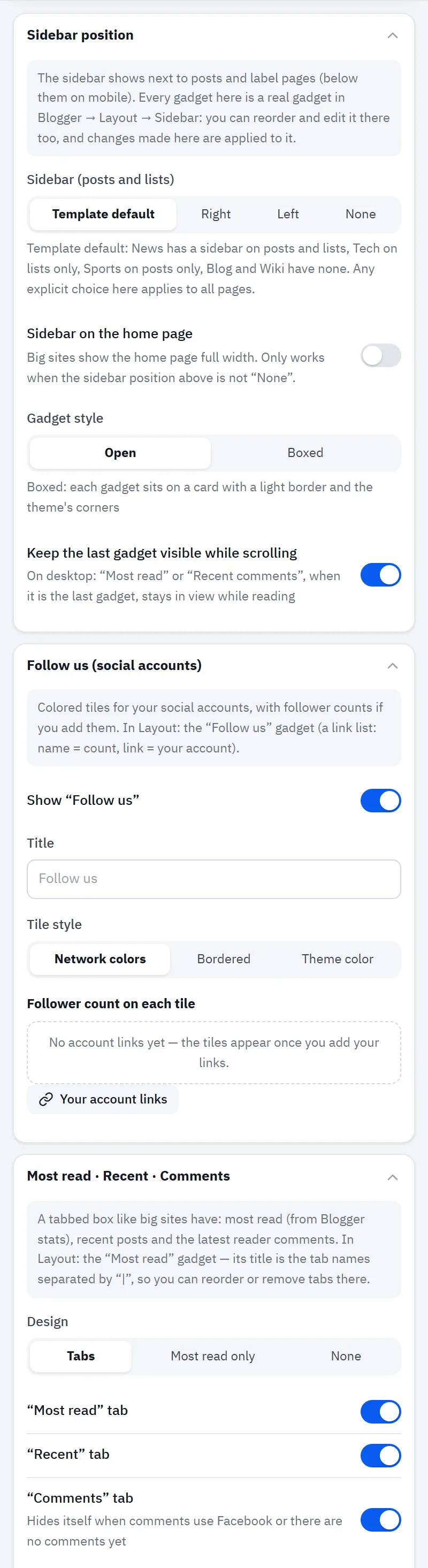
- Sidebar (posts and lists)✓Template defaultRightLeftNone
- “Template default” lets the template decide (see the table below). Any explicit choice applies to all pages. On Arabic blogs the two side names swap to follow the page direction.
- Sidebar on the home page
- Off by default, because big sites show the home page full width. Works only when the position isn’t “None”.
- Gadget style✓OpenBoxed
- “Boxed”: each gadget sits on a card with a light border and the theme’s corners.
- Keep the last gadget visible while scrolling
- On. On desktop, the last gadget (such as “Most read” or “Recent comments”) stays in view while the visitor reads.
| Template | Sidebar with “Template default” |
|---|---|
| News | On posts and lists |
| Tech | On lists only |
| Sports | On posts only |
| Blog and Wiki | None |
The two sidebar ad spots only show where there is a sidebar (Ads chapter).
Sidebar gadgets: Follow us, tabs and recent comments
“Follow us”
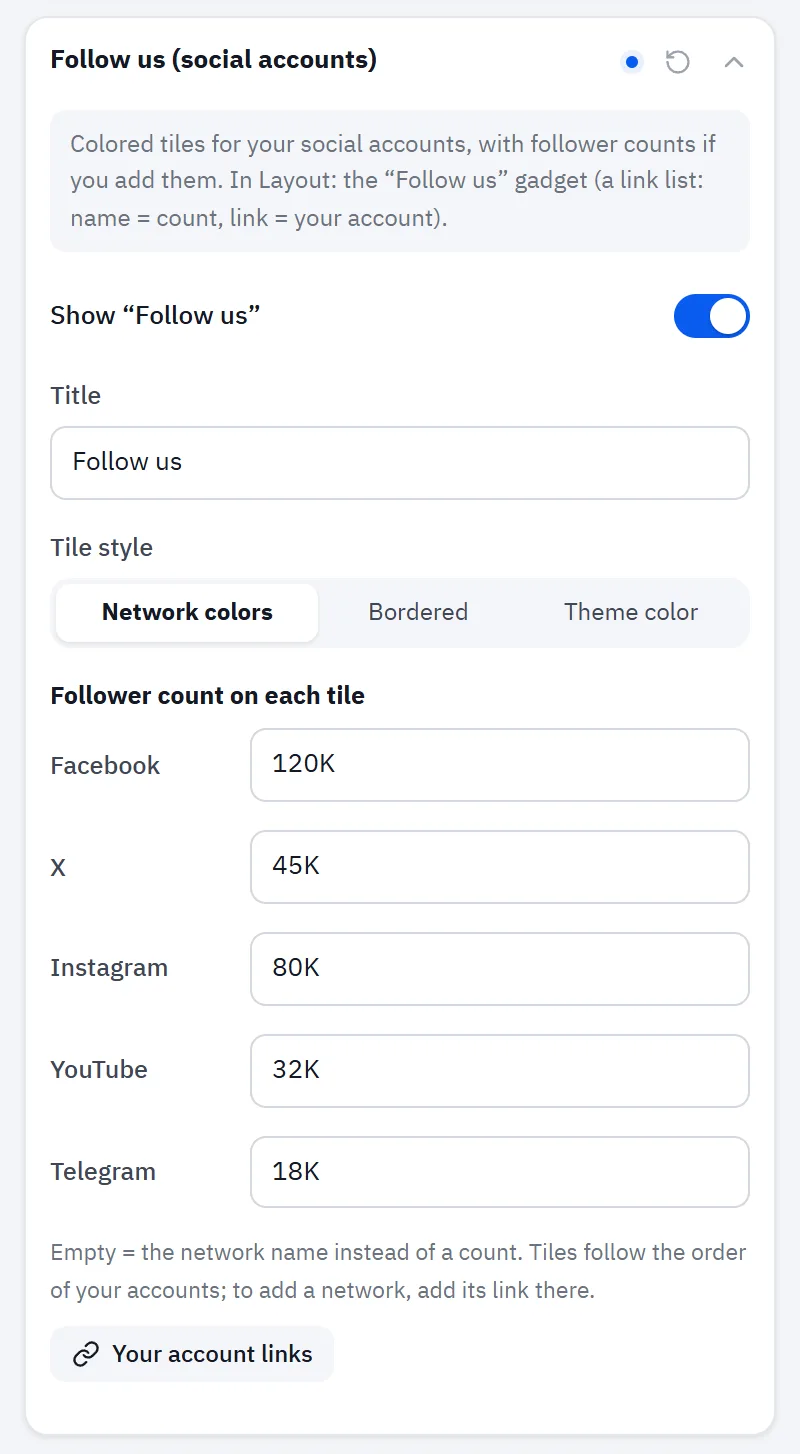
Colored tiles for your accounts, with follower counts if you add them. In Layout this is the “Follow us” gadget: a link list where each link’s name is the count and the link is your account.
- Show “Follow us”
- On. The tiles only appear once you add your account links.
- Title
- Empty = “Follow us”.
- Tile style✓Network colorsBorderedTheme color
- Each network’s colors, an outline only, or your site’s main color.
- Follower count on each tile
- One field per network that has a link. Empty = the network name instead of a count. The Your account links button takes you to “Social networks”.
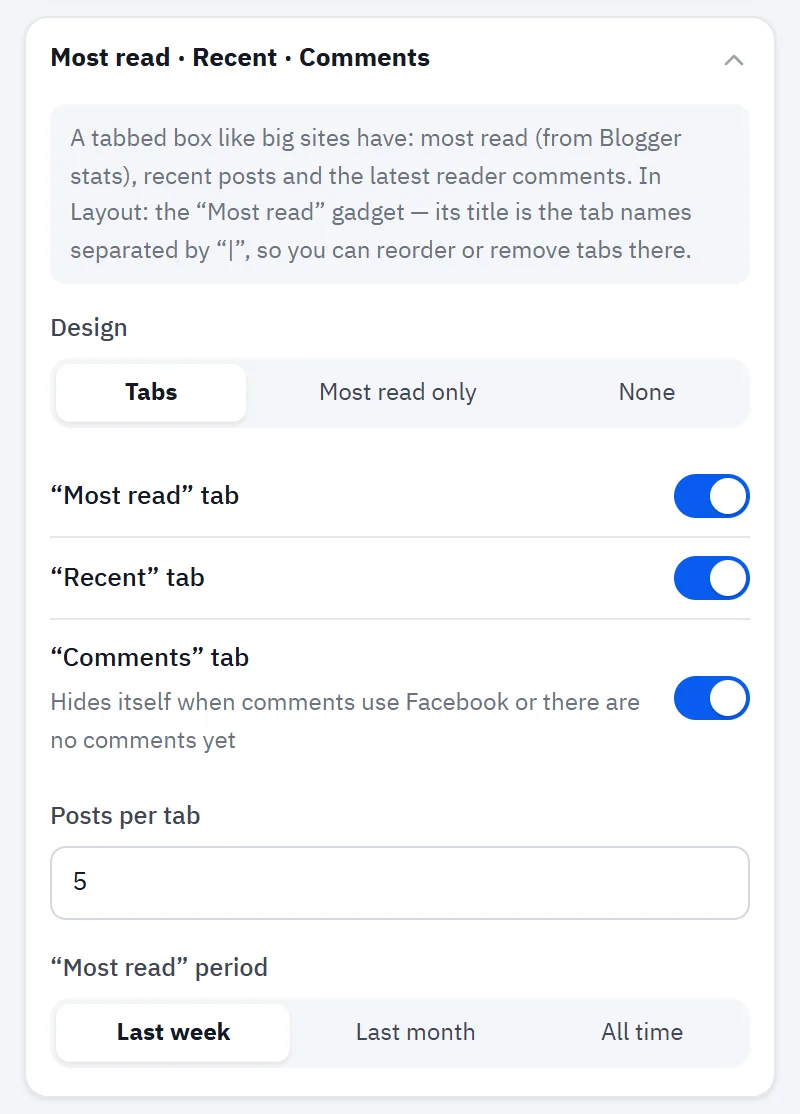
“Most read · Recent · Comments”
A tabbed box like big sites have. In Layout it is the “Most read” gadget, whose title holds the tab names separated by “|”. Reorder the names there to reorder the tabs, or delete a name to remove its tab.
- Design✓TabsMost read onlyNone
- A tabbed box, a “Most read” list alone, or nothing.
- “Most read” / “Recent” / “Comments” tab
- With “Tabs” only. All on. The Comments tab hides itself when comments use Facebook or there are no comments yet.
- Posts per tab
- 3 to 10, default 5.
- “Most read” period✓Last weekLast monthAll time
- Taken from Blogger stats.
“Recent comments”
A separate gadget with the latest reader comments: the commenter’s photo, name and comment; clicking opens the comment in its post. In Layout it is the “Recent comments” gadget, and its content is the count.
- Show “Recent comments”
- Off by default.
- Title
- Empty = “Recent comments”.
- Number of comments
- 3 to 10, default 5.
The author box
The author box isn’t in the sidebar; it appears under every post, and its settings are in the Post tab under “Author box”. It shows the author’s name, photo (or the first letter of the name) and profile link, their bio when there is one, and icons for their accounts. On blogs with two or more authors it also shows the author’s latest 3 posts. On by default; off on Wiki.
- Author details (optional)
- For each author: the name exactly as in Blogger, a short bio that overrides the Blogger profile bio, and their account links (one per line). Button: Add author. Links written inside your Blogger bio itself also become icons automatically.
More in the post page chapter.
Troubleshooting
The menu is empty or doesn’t show my labels
The automatic menu is built from the labels on your posts. Add labels to your posts, then Apply. Also check in Layout that the “Auto menu” gadget isn’t set to selected labels that don’t exist.
I added links to the “Main menu” gadget and the automatic menu disappeared
That is by design: your Layout links replace the automatic menu. Delete the links from the gadget to bring the automatic menu back, or switch to the custom menu in the panel.
The mega menu doesn’t open
It is desktop only and works on labels only. An item with a submenu opens its submenu instead. Check that the mega button for that label isn’t off, and that you aren’t on the trial.
The logo is too small or has a white frame
Upload a PNG with a transparent background. The theme trims margins and a white frame automatically and tells you the result under the logo field. Then raise “Logo height” if you like, within what the header allows.
The “Follow us” tiles don’t show
They need account links in “Header and footer → Social networks”. Also check that the sidebar shows on that page: for example, the Blog template has no sidebar with “Template default”.
I picked another template’s header and nothing changed
The new header appears only after Apply, not in Preview. On the trial this feature is locked until you buy.
Footer links I added in Layout changed after Apply
If “Footer links” in the panel isn’t empty, those are the links written on Apply. Edit in one place: empty the field in the panel to manage the links from Layout.
Social accounts: enter them once, see them everywhere
At the end of the tab, the “Social networks” group has six fields: Facebook, X, Instagram, YouTube, Telegram and WhatsApp. One link entered here is used in several places:
Enter your account links
In Header and footer → Social networks, paste each account’s full URL, such as https://facebook.com/your-page. Leave networks you don’t use empty.
Add follower counts (optional)
In Sidebar → Follow us there is a field for each network you added. Type the count the way you want it shown, such as “12K”.
Click Apply
The icons appear in the header, footer and sidebar, and are added to Google’s data. In Layout you’ll find them in the “Social accounts” gadget.
Other official accounts (such as LinkedIn or TikTok) can be added for Google only, in the SEO tab under “Other official accounts”.