
Step 1
Before you start
On WordPress, Nabd is a single plugin: upload it once and a Nabd item appears in the WordPress menu, opening the full control panel next to a live preview of your site. From there you pick one of the five templates (news, sports, tech, blog, wiki), customize every part, then click “Apply to site” and the Nabd theme installs and keeps itself up to date. No Chrome extension and no code needed.
On Blogger? This guide is for WordPress. The Blogger guide (with the Chrome extension) is the Nabd guide for Blogger.
Your old theme is kept: Nabd installs as a new theme next to yours, and doesn’t touch your posts, pages or plugins. Switch back to your old theme anytime from “Appearance → Themes”.
Step 2
Installing the plugin in WordPress
You install it once, and it takes a minute:
-
Download the plugin
You get a file named
nabd-….zip. Don’t unzip it: WordPress uploads it as it is. -
Upload it from “Plugins”
In your WordPress dashboard open Plugins → Add New, click Upload Plugin at the top, choose the file, then Install Now.
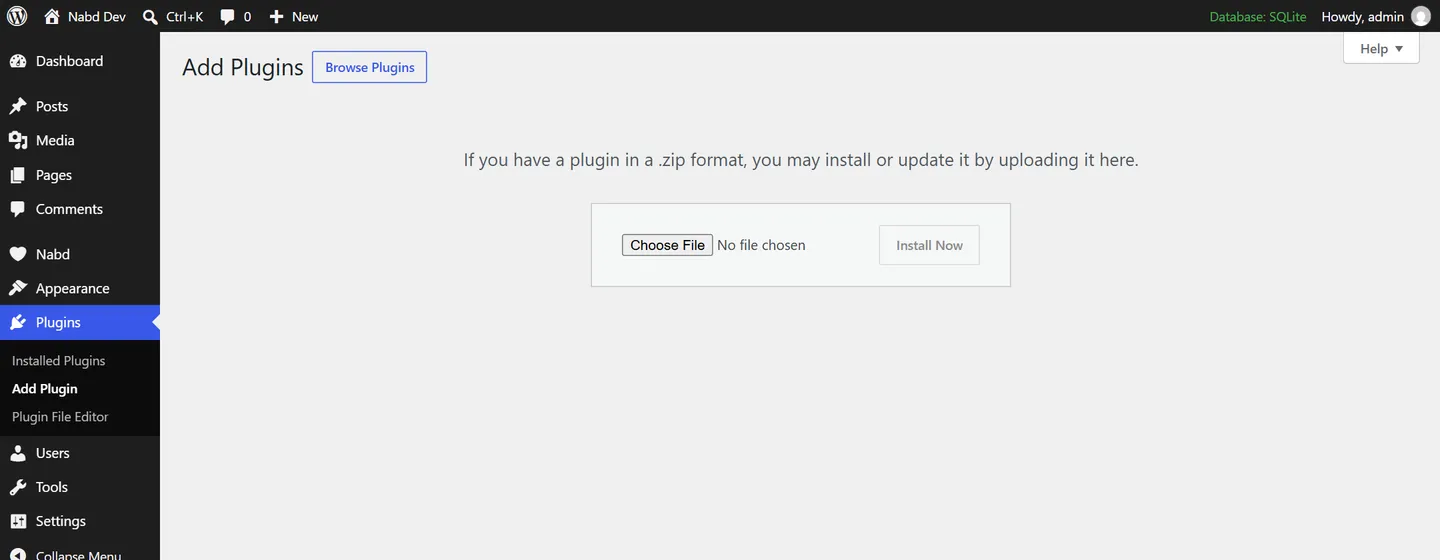
“Plugins → Add New → Upload Plugin” -
Activate it
Click Activate Plugin. A new Nabd item appears in the side menu, and your free trial starts right away.
When a new version of the plugin comes out: it appears under Dashboard → Updates like any other plugin, and you update it with one click. No need to download the file again.
Step 3
Opening the Nabd panel and starting the free trial
-
Click “Nabd” in the WordPress menu
The panel opens full width: tabs on one side, settings in the middle, and a preview of your site on the other side, with Desktop, Tablet and Mobile buttons.
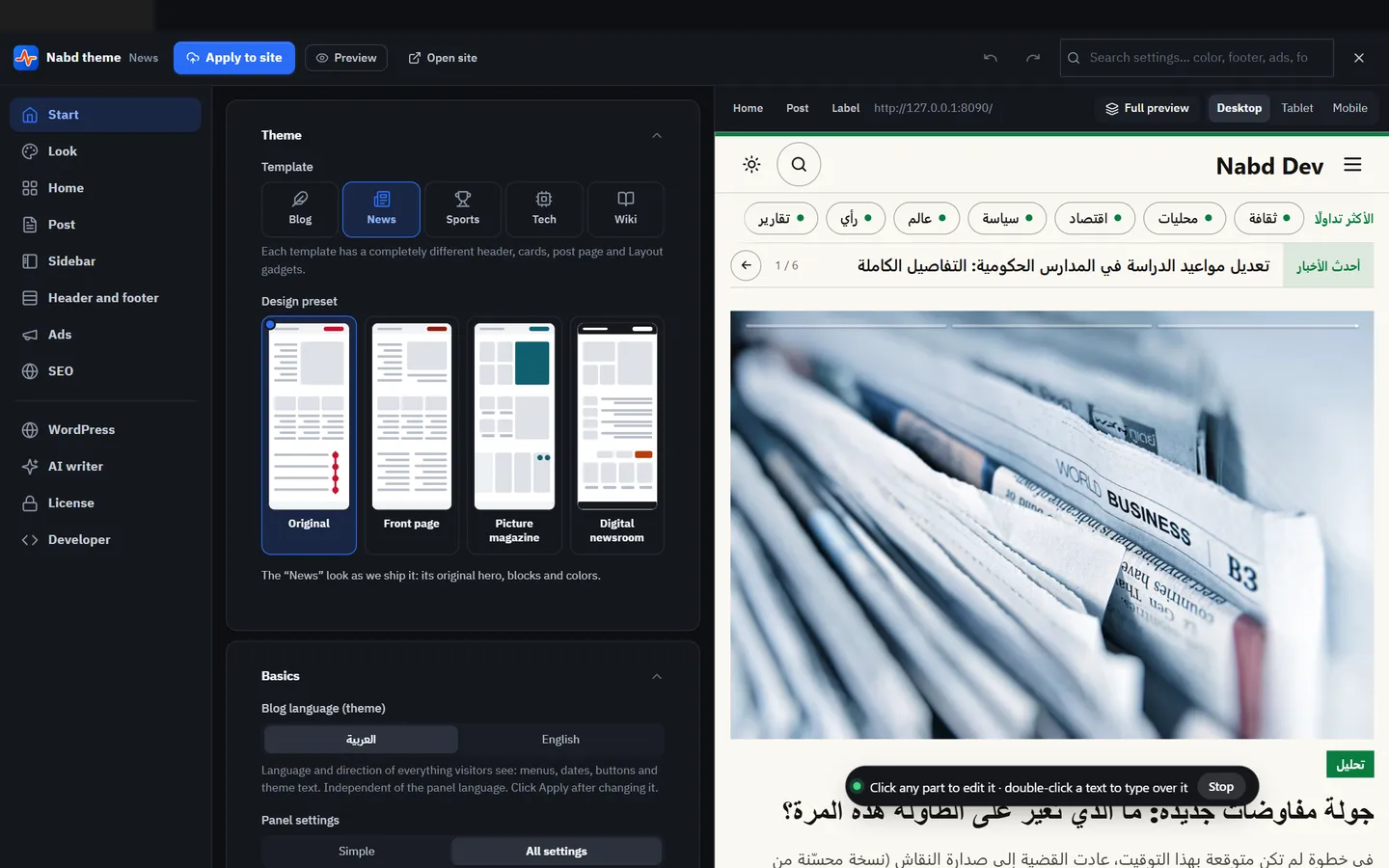
The “Start” tab next to the site preview -
The trial has already started
As soon as you activate the plugin, the free trial starts for 7 days, with no sign-up and no card. Its status and the days left are on the License tab.
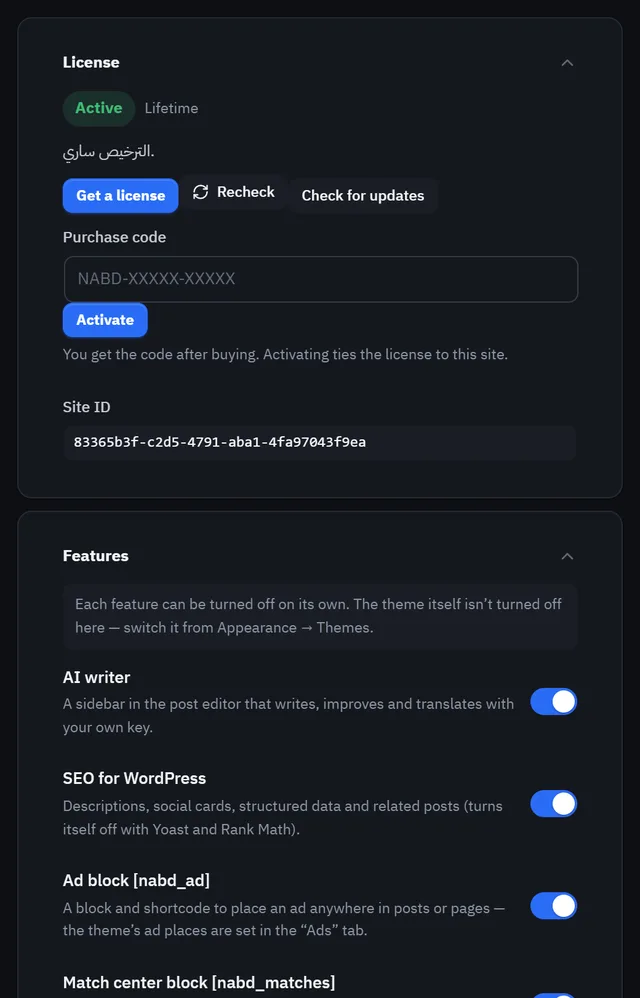
“License”: status, purchase code and your Site ID 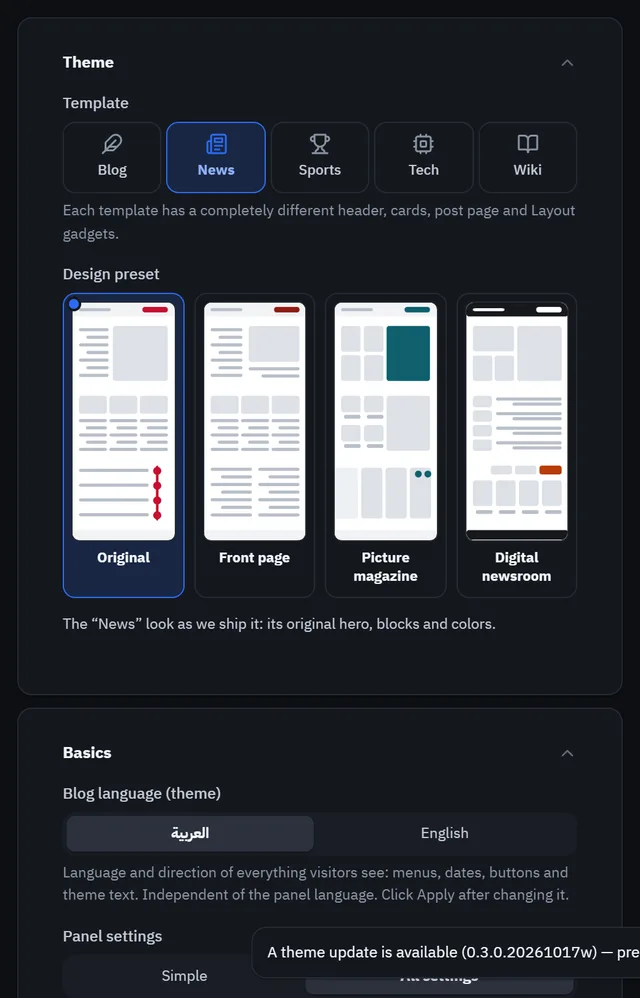
“Start”: template and design preset
What does your site send to Nabd?
- Your site address, its name and a random ID: so the license is tied to your site alone.
- Your design settings when you click “Apply”: so the Nabd server can build your theme with them.
- No posts, no visitor data and no passwords. Your AI writer key is stored on your site only.
Step 4
Choosing a template and applying it to your site
-
Pick a template
On the Start tab you’ll find Template: five buttons (Blog, News, Sports, Tech, Wiki). Pick the one closest to your content, and the preview changes right away. Not sure? Watch each template on video.
-
Pick a design preset (optional)
Each template has its “Original” look plus other presets. A preset is more than colors: it changes the hero, the order of sections, fonts and corners, and each card shows a mini page so you see the look before choosing it.
-
Click “Apply to site”
The blue button at the top of the panel. The Nabd server builds the theme with your settings, and the plugin installs it in WordPress as
nabd-plus your template, and activates it. Your old theme stays installed.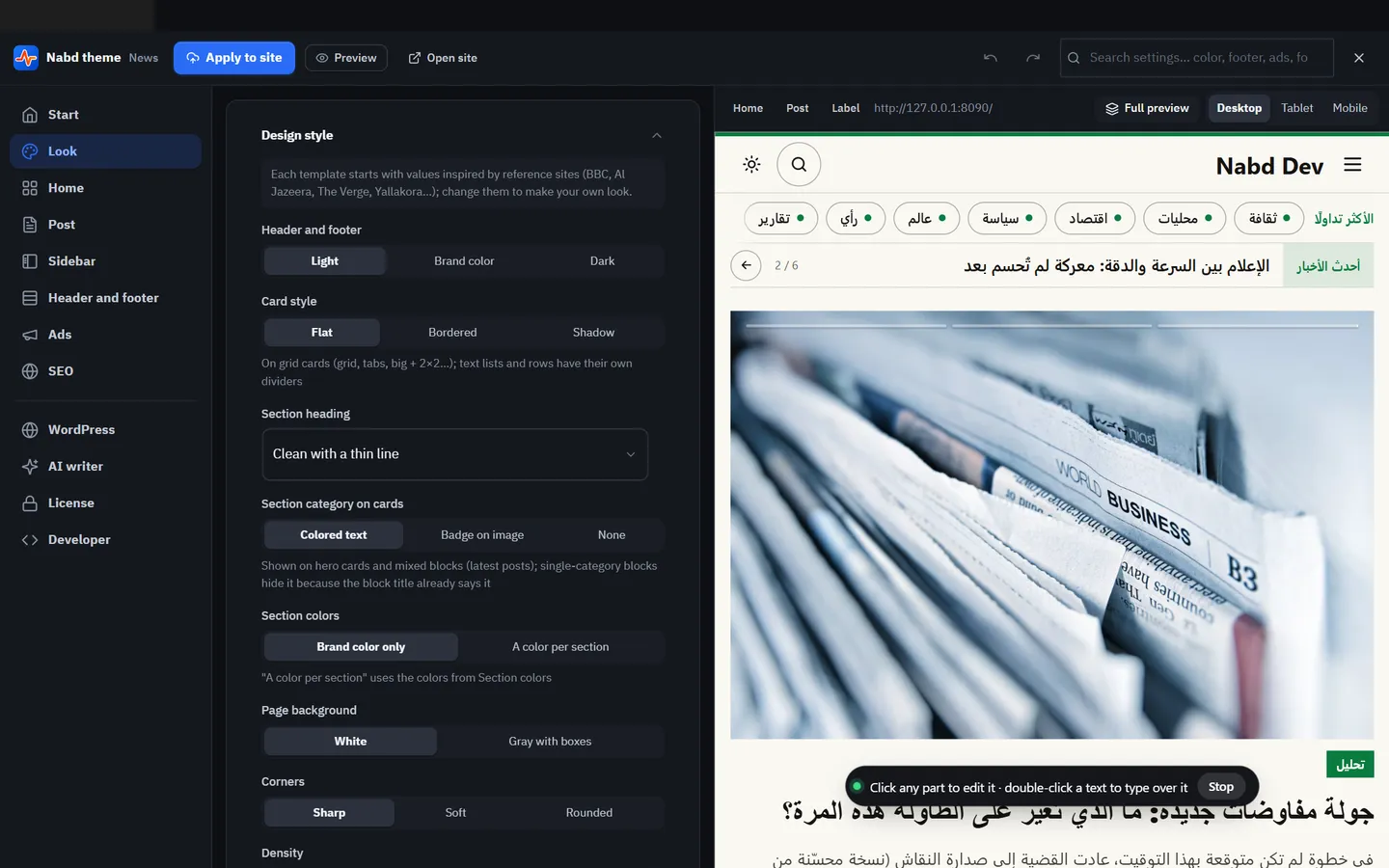
Customize and see the result in the preview before you “Apply” -
Open your site
Click Open site at the top of the panel: your site in the Nabd design, with your posts, categories and menus. Then add your touches: logo, colors, home sections. Customizing step by step.
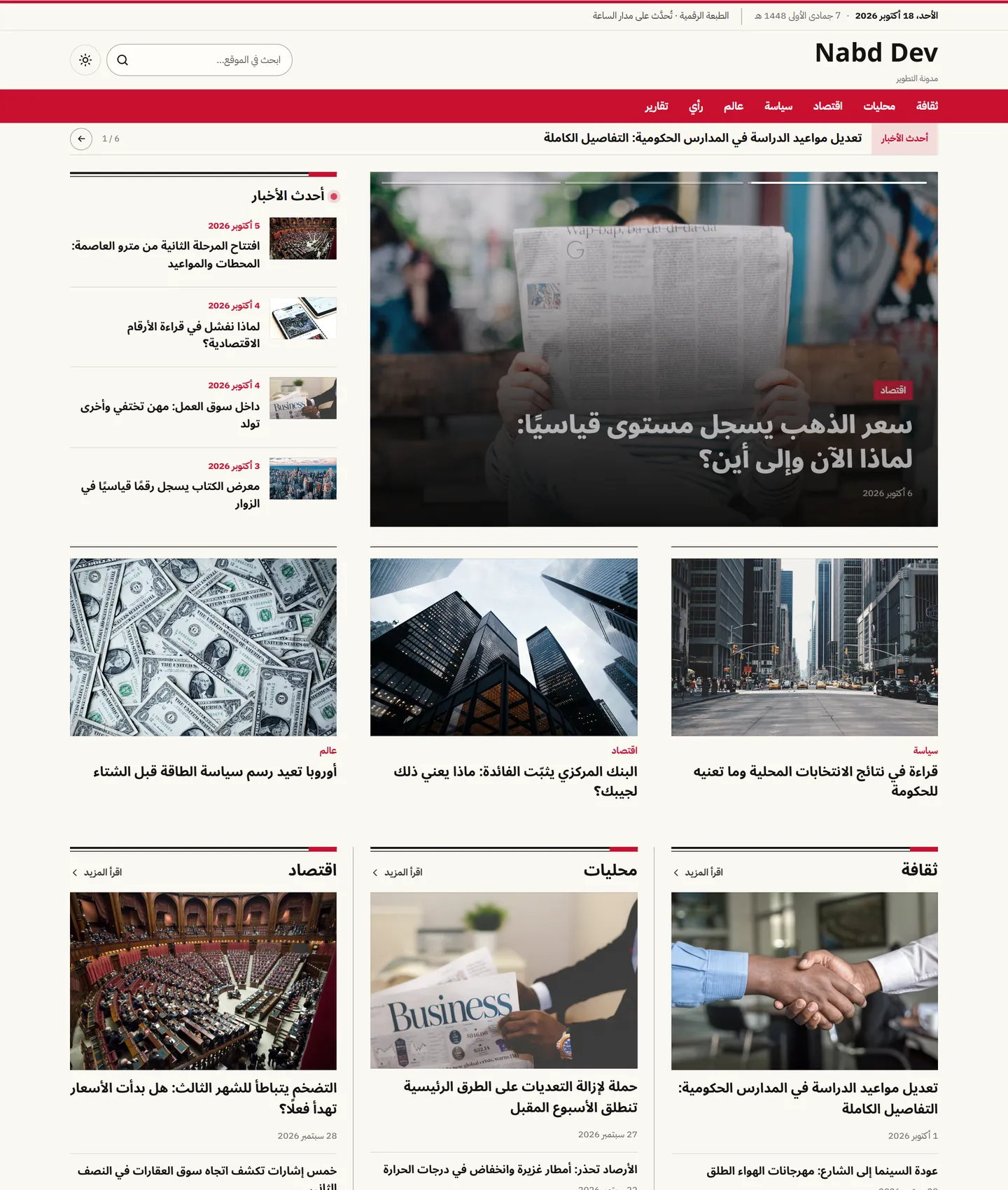
A WordPress site on the News template after “Apply to site”
Preview vs. “Apply”
- The preview: colors, visibility, texts and section order show in it instantly, without visitors seeing anything.
- “Full preview”: shows changes to the theme itself (such as the template or the hero) before you apply them.
- “Apply to site”: publishes all of it to visitors. Your changes are kept every time, and theme updates reach you automatically.
Step 5
The five templates: how each looks and how to turn it on
Each template is designed and structured on its own, not the same theme in different colors. Switch between them any time: pick the template and click “Apply to site”, and your settings (ads, SEO, logo) stay as they are. These videos come from real demo sites, and the design is exactly the same on WordPress.
News: for news sites and papers
Modeled on major newspapers: a big lead story with headlines beside it, a breaking-news ticker, and many well-organized sections. Built to handle hundreds of posts without repeating a story in two sections.
- Breaking ticker, today’s date and a top bar with your social links
- Sections: trio, timeline, opinion with writer photos, photo strip, magazine, most read
- Posts with a reading-progress bar, table of contents and related posts from the same section
Design presets
- Front pageThe newspaper cover: a cover story with an issue index, serif headlines and dense square columns
- Picture magazineA photo mosaic on top, shadowed rounded cards and a dark gallery — the image before the headline
- Digital newsroomBento tiles on top, a live stream and most-read numbers, a dark header and thin frames
How to turn it on
- Start ← Theme ← News
- Pick a preset, or keep the “Original”
- Click Apply to site, then set the breaking-news category on the Home tab (“عاجل” by default)
Sports: for sports sites and scores
A night poster for the big match, a match center with yesterday/today/tomorrow tabs that fetches scores and kick-off times automatically, team logos, and transfer and video cards.
- An automatic match center: the leagues you choose, in your order, with the channel and commentator for each match
- Sections: top scorers, transfers, video wall, mosaic, tabs
- A scores bar in the header, with a pulsing red mark on live matches
Design presets
- Fan standAll dark: a photo mosaic, a video wall and a wide photo row, fiery orange
- League tableCalm and dense for numbers: a lead story with headlines, rankings and a timeline side by side, royal blue
- Stadium nightBig tiles on top, a full-width night band and a photo magazine, stadium red
How to turn it on
- Start ← Theme ← Sports
- A new Matches tab appears in the panel: order the leagues you care about
- Click Apply to site; the match center appears as the first home section
Tech: for tech, reviews and apps
Bento tiles up front with a numbered index, review cards with ratings, an “hourly brief” as a fast stream, and a dark mode designed for every element. Posts get formatted code and clear comparison tables.
- “Review” and “Feature” cards designed for tech
- Sections: strip, spotlight, stream, full-width color band, stories
- An “App store” preset for app and game download sites (full chapter)
Design presets
- App storeBlack and white with color from the app icons, many small cards, and a store-style post page with a download box
- Developer docsCalm like documentation: a featured article, a changelog and section portals, teal
- TerminalDark like a command line: a cover story with a numbered index, rankings, stream and tabs, mint green
- Reviews magazineFor devices and products: shadowed review cards with rounded corners, a latest-reviews strip
How to turn it on
- Start ← Theme ← Tech
- Pick a preset, and choose the default mode on Start: light, dark, or follow the visitor’s device
- Click Apply to site
Blog: for writers and personal blogs
A big cover with an index, a calm rhythm, and “story” and “text-only” cards. Sections rotate their layouts automatically so the home page never looks repetitive, and “From old notebooks” brings your archive back to the front.
- A ready-made “About the author” card
- Automatic rotation: spotlight, stream, magazine, featured, list
- Topic portals: a card for every category
Design presets
- Essay magazineFor long reads: a featured article, opinion pieces and an archive timeline, classic serif and wine ink
- Photo journalFor travel and photos: a mosaic on top, masonry, a wide photo row and the story of the week, sea blue
- Soft notebookSoft cards on gray panels: tiles on top, a stream of posts and a most-read ranking
How to turn it on
- Start ← Theme ← Blog
- Write a short bio in “Users → Profile” in WordPress (it shows in “About the author” and the author box)
- Click Apply to site
Wiki: for culture and knowledge content
Modeled on Wikipedia: a featured article, “Did you know?”, an infobox, portals and an A–Z index. Posts open with an encyclopedic lead, with a sticky table of contents and references.
- An “entry” card and a full-width wiki box
- Sections: wiki, rows with images, spotlight, list, strip, and “from the archive”
- Ready-made “Did you know?” and “About” boxes
Design presets
- Classic encyclopediaArticle of the day with its index, wiki boxes, portals and a timeline, classic serif and link blue
- Knowledge guideModern: bento tiles, portals first then an entries strip and a spotlight, dark header
- Paper archiveLike printed volumes: a lead story with headlines, a timeline and a magazine, brown ink in a serif face
How to turn it on
- Start ← Theme ← Wiki
- Edit the wiki texts (“Did you know?” and “About”) on the Home tab
- Click Apply to site
Something no other theme does: take a look from one template and use it in another — the hero, a section, or the header and footer from any template — and it appears in your current theme’s colors. A news blog with the wiki header, or with the tech hero, for example.
Step 6
Customizing from the Nabd panel: a tab for everything
It’s the same panel on Blogger and WordPress: tabs, with a search box on top that takes you to any setting by name (type “color”, “footer” or “ad”). Every group you changed shows a dot and a ↺ button to reset it, and the undo and redo buttons sit at the top of the panel. You can also click any part in the preview to open its settings directly (Visual editing).
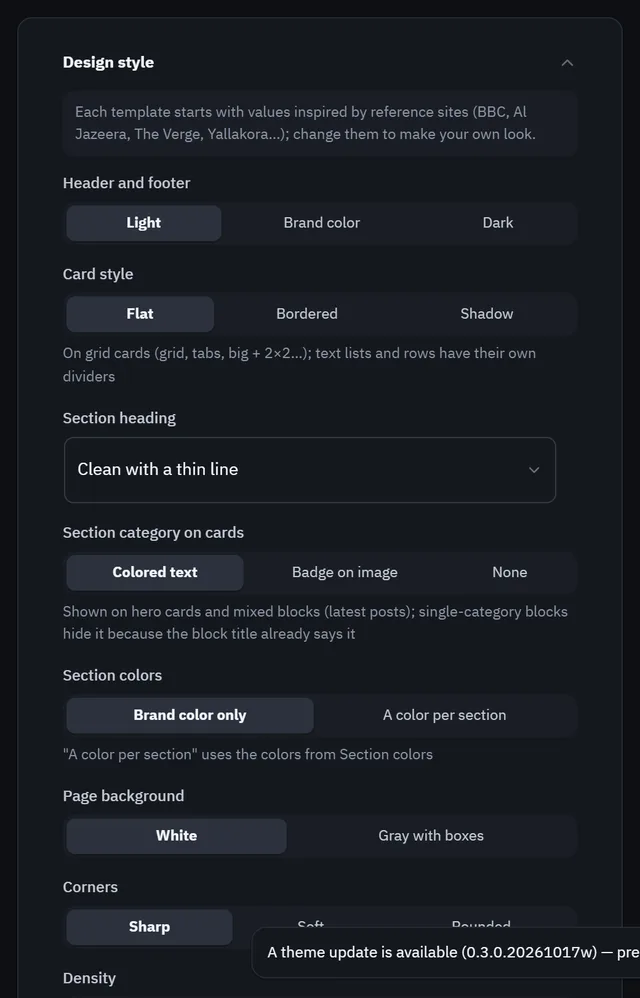
Look
Colors (the main color and a color per section), fonts, the header, cards and section headings, corners, spacing and image ratio.
Why it helps: A distinct identity for your site in minutes.
Full chapter →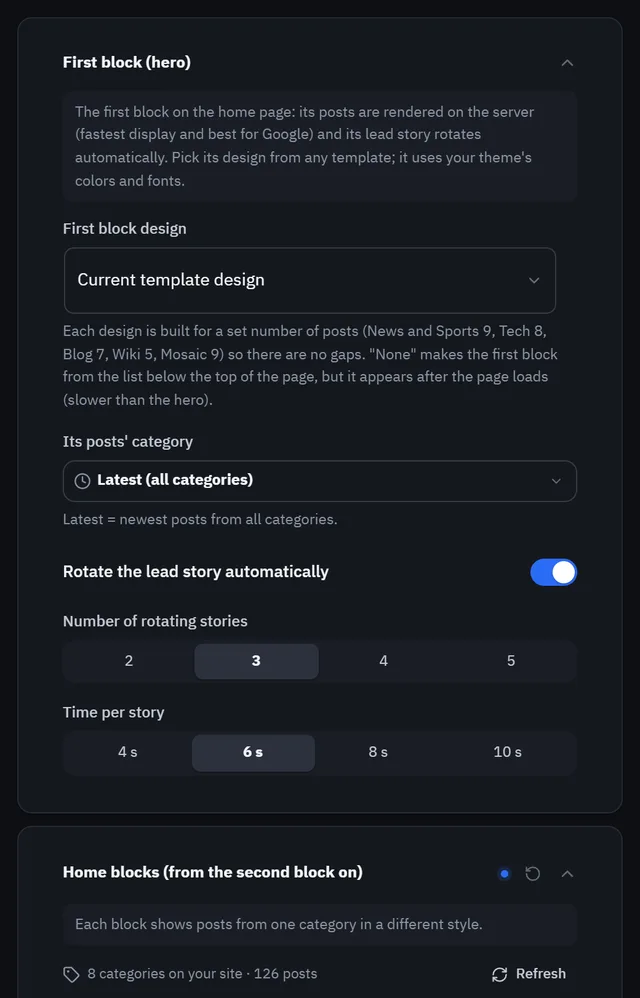
Home
The first block (hero) and its rotating lead story, and the home sections: each with a category, one of 24 layouts, a card style, a count and columns.
Why it helps: A home page built around your categories.
Full chapter →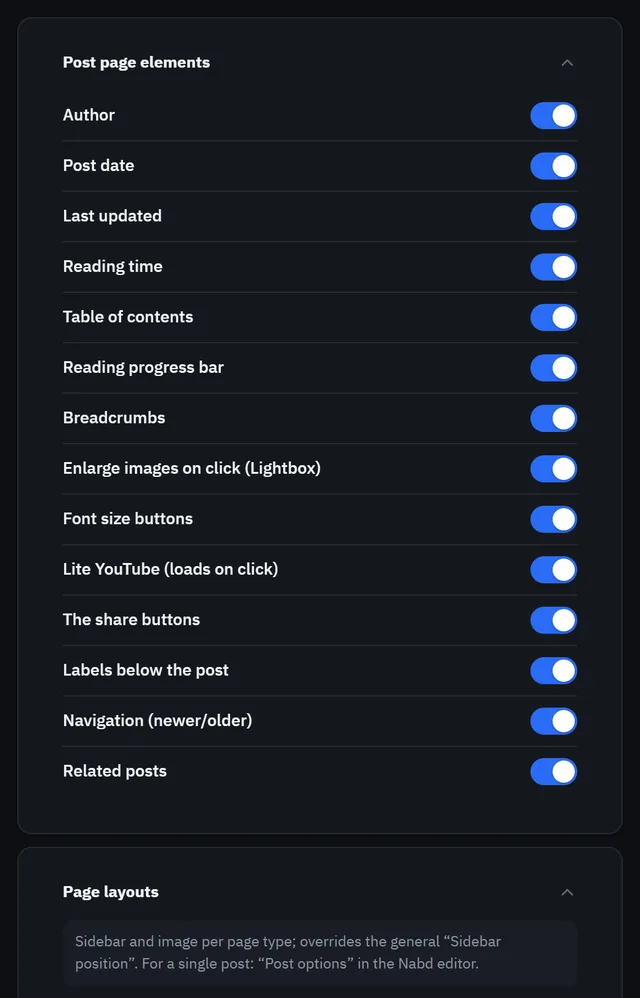
Post
Every part of the post page: author, date, table of contents, reading progress, breadcrumbs, image zoom, sharing and related posts.
Why it helps: A post page that is easy to read and ready for Google.
Full chapter →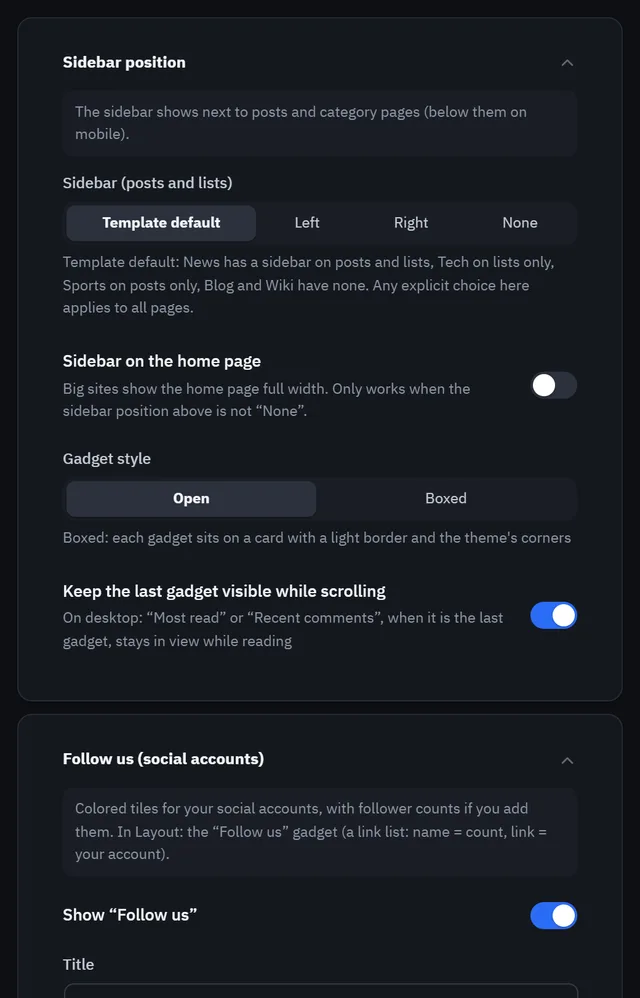
Sidebar
Where the sidebar sits and when it shows, “Follow us” tiles for your accounts, tabs (most read, latest, comments) and recent comments.
Full chapter →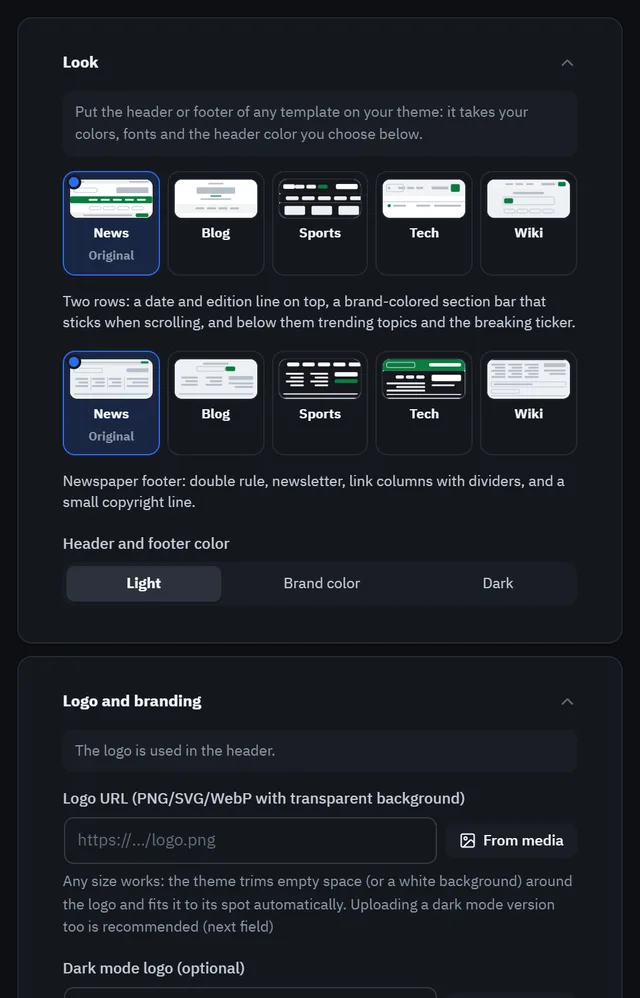
Header and footer
The logo (light and dark) from the media library, the main menu from your WordPress menus or a custom one with sub-menus, and the footer with its columns and links.
Full chapter →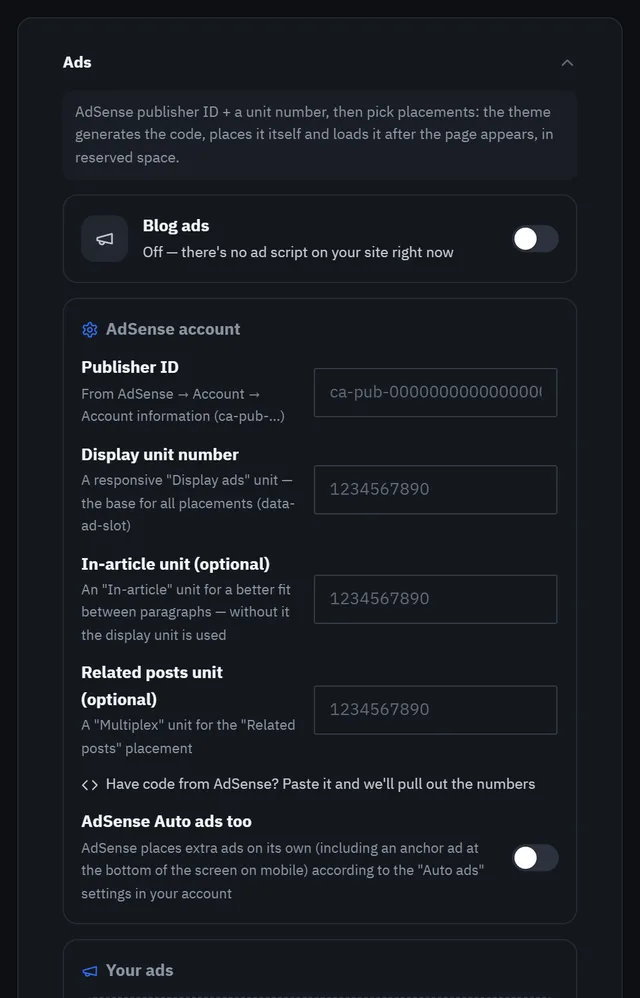
Ads
Your AdSense publisher ID and one ad unit (or paste the code and Nabd extracts the numbers), then pick the places: top of the page, sidebar, inside the post, after it… with reserved space.
Why it helps: Ad revenue without page jumps.
Full chapter →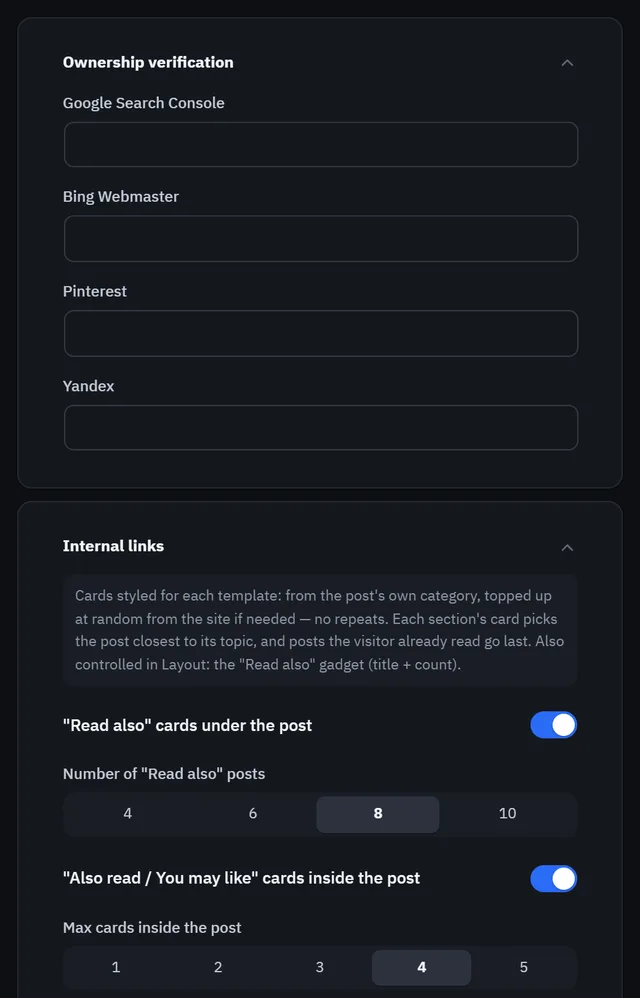
SEO
Verification codes (Search Console, Bing, Pinterest, Yandex), “Read also” internal links inside and below posts, and organization data.
Full chapter →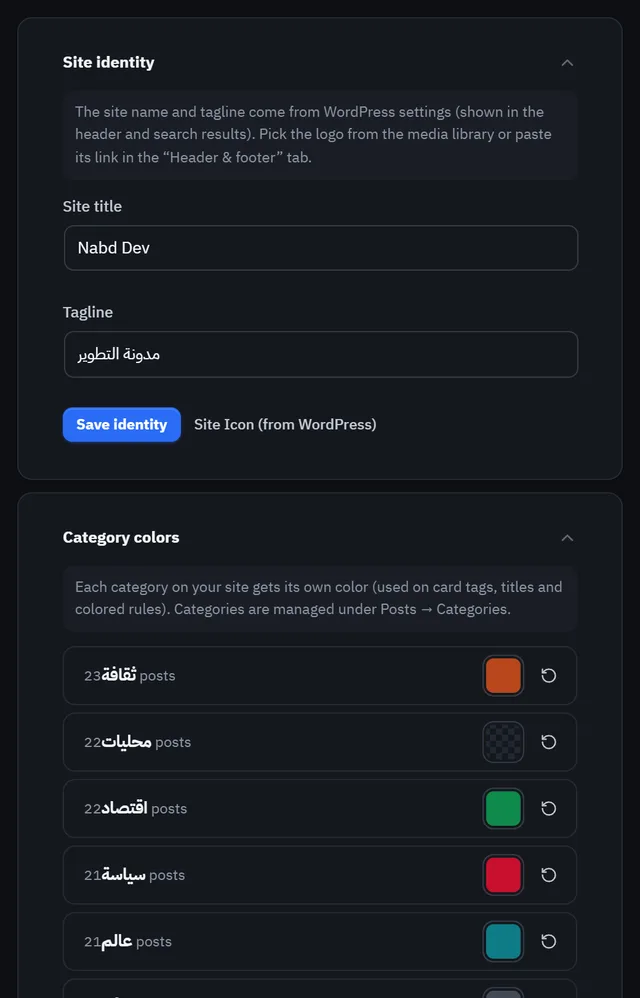
WordPress (WordPress only)
Site identity (name, tagline and icon), category colors, menus, speed, and “Saved versions” of your settings.
Why it helps: Everything WordPress-specific in one place.
AI writer
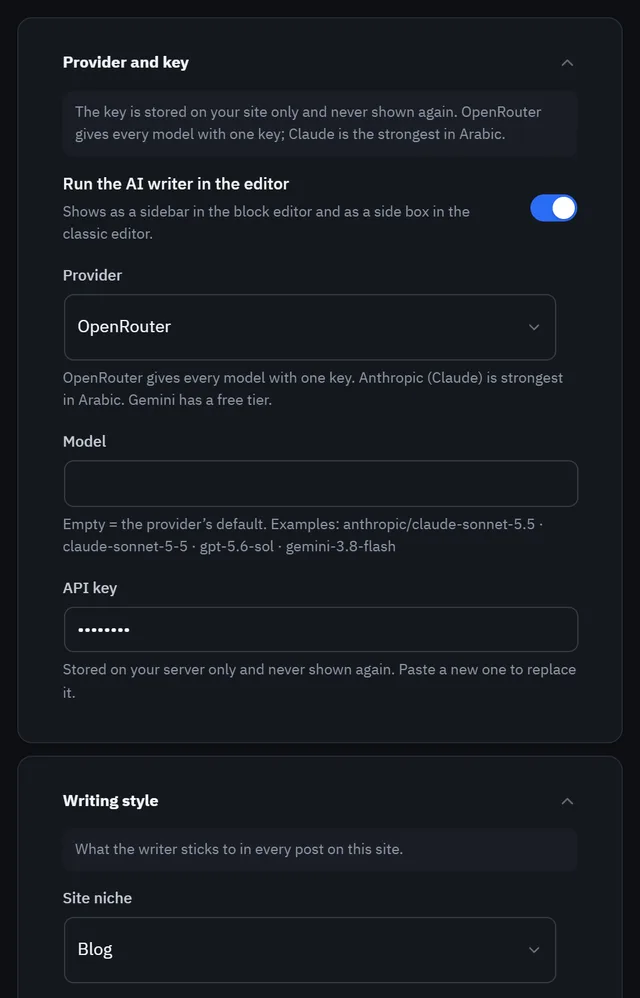
The provider (OpenRouter, OpenAI, Gemini or Anthropic), your key and model, the writing style and your site’s topic, and a switch that turns it on in the editor.
Why it helps: Your key is stored on your site only.
Full chapter →License (WordPress only)
License status and trial days, the purchase code field, recheck and check for updates, and the features you turn on or off (writer, SEO, ad block, match center block).
Developer
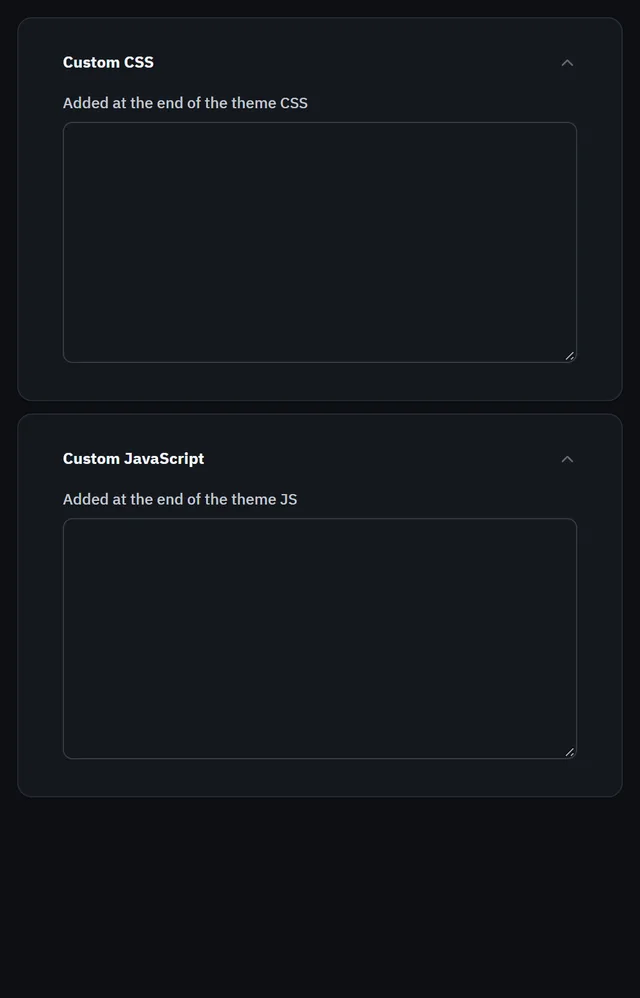
Custom CSS and JavaScript added at the end of the theme, for advanced users.
The Sports template: a Matches tab appears for turning on the match center and picking leagues. Team logos are stored on your own site automatically, so visitors never load images from a third party. Match center chapter.
Step 6b
In-depth chapters
Every Nabd system has its own full chapter: every setting, its options and what it does on your site, with screenshots.
Step 7
Inside the post editor
Nabd adds small panels to the WordPress editor’s sidebar (block and classic):
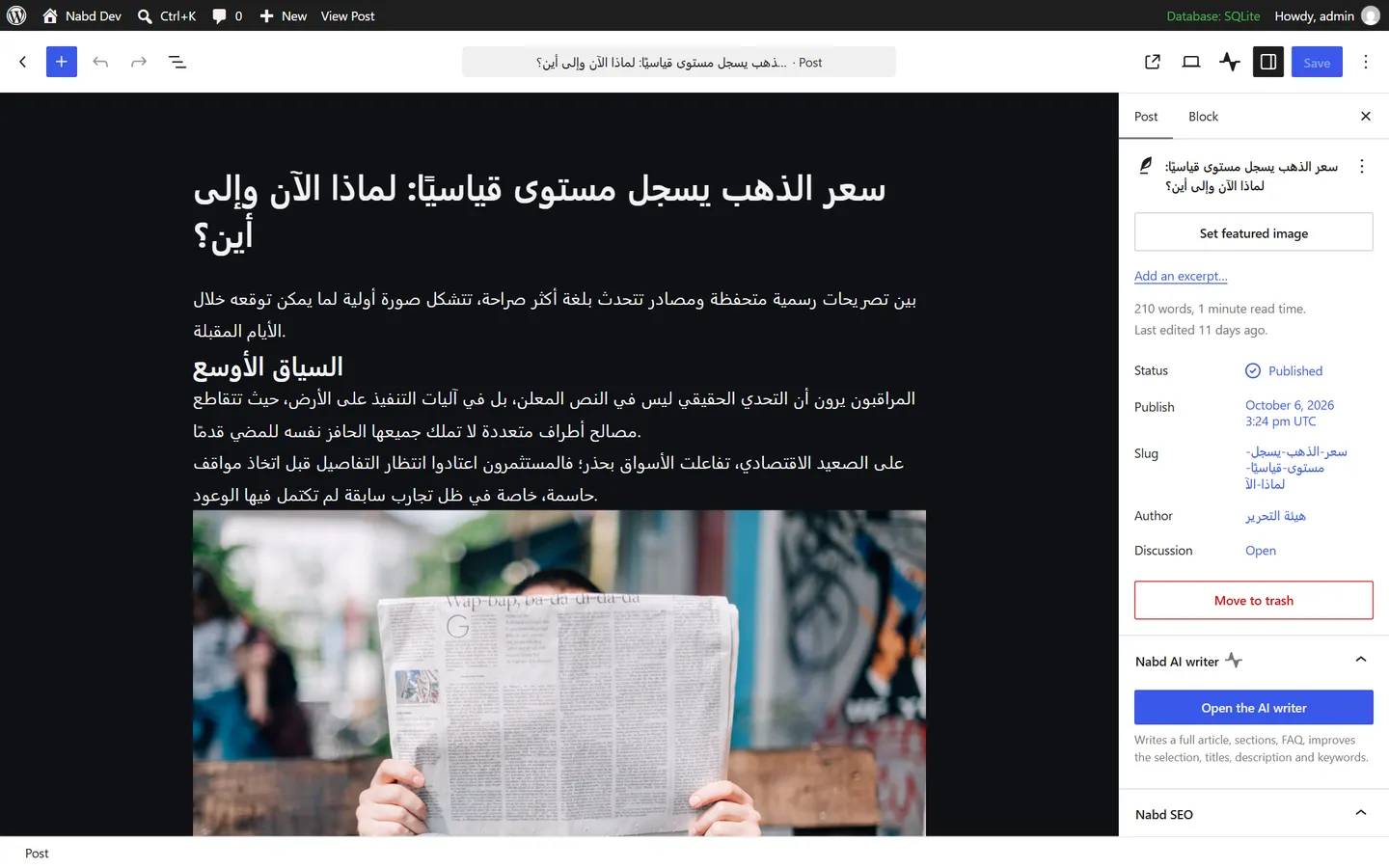
- Nabd AI writer: writes a complete article with sections and FAQs, improves a paragraph, and suggests titles, descriptions and keywords, with your own key.
- Nabd SEO: the focus keyword and search description for the post.
- Nabd layout: for this post only: full width without a sidebar, hide the featured image at the top, hide the author box, comments, sharing or related posts, and a small kicker word above the title.
- Blocks: “Nabd ad” to place an ad inside any post or page, and “Match center” for sports sites. They also work as the shortcodes
[nabd_ad]and[nabd_matches].
Why it helps: you write and prepare your post for Google without leaving the editor. AI writer chapter.
Step 8
SEO with Rank Math and Yoast
The Nabd theme writes the description, social tags and structured data (article, breadcrumbs, organization) itself. If it finds a well-known SEO plugin such as Rank Math, Yoast, All in One SEO or SEOPress, it leaves those to the plugin instead of duplicating them, and doesn’t add a second breadcrumb trail when the plugin already prints one.
Which should you use?
- No SEO plugin: Nabd is enough. Write each post’s description in “Nabd SEO” in the editor, and your verification codes on the SEO tab.
- You use Rank Math or Yoast: keep it as it is. Nabd steps back from the description and social tags automatically, and the “Read also” internal links still come from Nabd.
Step 9
Permanent activation after buying
Buy a license
From the pricing section: send us your site address along with your proof of payment.
Get your activation code
We send you a code like
NABD-XXXXX-XXXXX. Each code works on one site.-
Enter it on “License”
Open Nabd → License, paste the code into the Purchase code field and click Activate. The status changes to “Active” right away, and everything carries on as it is.
“License” after permanent activation
A license covers one site: one Blogger blog or one WordPress site. If you move your site to a new domain, contact us and we’ll move the license with it. When the trial ends without activation, “Apply” and updates pause until you enter the code.
Step 10
Updates and rolling back: you lose nothing
- Theme updates are automatic: when an improvement ships, Nabd re-applies your theme with your settings by itself (you can turn this off on the WordPress tab).
- Plugin updates: appear under “Dashboard → Updates” like any other plugin.
- Saved versions: on the “WordPress” tab, save a copy of your settings and go back to it with one click.
- Undo and redo: two buttons at the top of the panel for any change before you apply.
- Back to your old theme: “Appearance → Themes”, then activate it. Your posts stay as they are, and your Nabd settings are kept if you come back.
Step 11
Troubleshooting
I clicked “Apply to site” and got a message that the theme needs a license
Open the “License” tab and click “Recheck”. If the trial has ended, enter your activation code; if the problem remains, contact us.
I applied but don’t see the change on my site
Clear your site cache (your caching plugin, your host’s cache or Cloudflare), then open the site in a private window.
I can’t find “Upload Plugin” on the Plugins page
You need an Administrator account. Some managed hosts block plugin uploads: upload the folder by FTP to wp-content/plugins, or ask your host to do it.
A message says my PHP version is too old
Nabd needs PHP 8.1 or newer. Change it in your hosting panel (cPanel → Select PHP Version) or ask your host’s support.
Do I need the Chrome extension on WordPress?
No. The Chrome extension is for Blogger only. On WordPress everything is inside your WordPress dashboard, under the “Nabd” menu.
Will I lose my posts or my old theme’s settings?
No. Nabd doesn’t change your posts, pages or categories, and your old theme stays installed under “Appearance → Themes”.
The preview in the panel doesn’t show
Some security plugins block showing the site inside a frame. Use “Full preview” or “Open site”, or allow your site to frame itself in the security plugin’s settings.
I also have a Blogger blog — is one license enough?
A license covers one site. For two or more sites, contact us for a special offer.