
What you control here
The Post tab of the side panel has four groups:
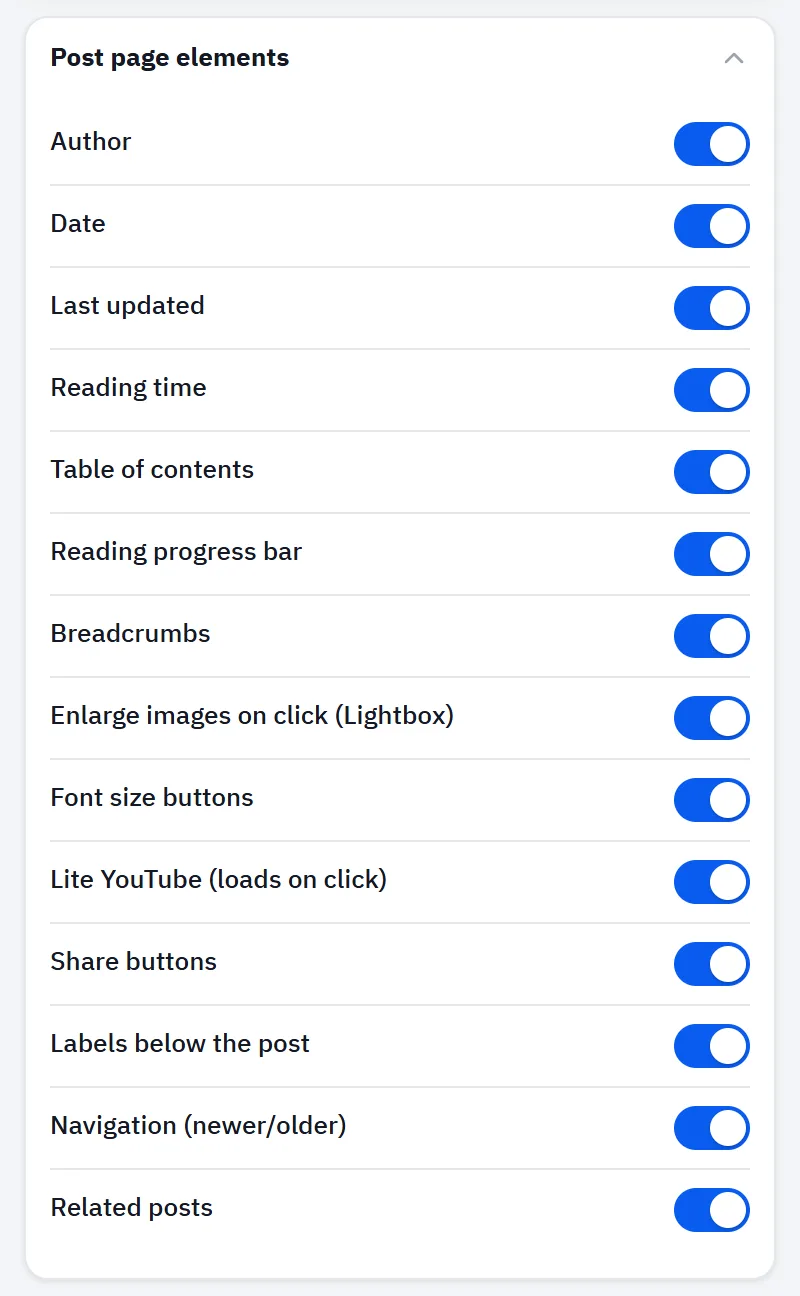
- "Post page elements": 14 switches to show or hide parts of the page, all on by default (with a few exceptions on the Wiki template).
- "Author box": a card introducing the writer under every post, with a bio and links you can write yourself.
- "Comments": turn them on, lazy-load them, and choose Blogger or Facebook comments.
- "Wiki": Wiki template only, for numbering the post's headings.
After any change, click Apply to blog. Nothing in this tab is locked to the paid version.
Related settings in other tabs: the "Read also" and in-post link counts are in the SEO tab (SEO and indexing), the sidebar on post pages is in the Sidebar tab (Header, menu, footer and sidebar), and post ads are in the Ads tab (Ads).
Top of the post: author, dates and breadcrumbs
These details sit around the post title and tell readers and Google who wrote the post and when.
- Authoron
- The writer's name under the title. Important on blogs with several writers, and it builds reader trust.
- Dateon · not on the Wiki template
- The publish date. This switch appears on the News, Tech, Sports and Blog templates only.
- Last updatedon
- "Updated" with its date appears only when you edit a post after publishing it, so readers know the information is fresh.
- Reading timeon
- An estimate such as "5 min read", based on about 200 words per minute. It helps visitors decide whether to read now or save the post for later.
- Breadcrumbson
- A small line above the title such as "Home › Label". It lets visitors jump to the section, and adds structured data (BreadcrumbList) that Google understands and may show in search results.
Reading tools
- Table of contentson
-
A box listing the post's headings (H2 and H3). It appears only when the post has two or more headings. Clicking a heading jumps straight to it.
The box starts collapsed: visitors see its title with the number of headings and open it with one click, and it never pushes the text down as it appears. The exception: on the Tech template on wide screens (1200px and up) and on the Wiki template (1024px and up), the contents sit in their own side column, so they show open. If you number your headings yourself (like "1. Introduction"), the theme highlights your number instead of adding another.
- Reading progress baron · off on Wiki
- A thin bar at the top of the screen that fills as the reader scrolls, showing how much is left.
- Enlarge images on click (Lightbox)on
- Visitors click an image in the post to see it large over the page, and close it with × or by clicking outside it. It skips small images (under 200px wide) and images that link to another page, which stay links.
- Font size buttonson
- Larger and smaller buttons above the post text. They scale the text from 90% to 130%, and the browser remembers the visitor's choice on every post. Helpful for older readers and phone reading.
- Lite YouTube (loads on click)on
- YouTube videos in the post show as an image with a play button, and the heavy player loads only when the visitor clicks, so the page is much faster. A video at the very start of the post stays a real player, so Google recognizes it as the post's video.
Tip for the contents box: split long posts with real "Heading" (H2) and "Subheading" (H3) styles in the Blogger editor, not just bold text. That makes the contents box appear, and gives the in-post links a place to go.
End of the post: sharing, labels and navigation
- Share buttonson
- A share bar beside the post and a "Share:" row at the end: your device's share button, Facebook, X, WhatsApp, Telegram and "Copy link". Every share is a free new visit.
- Labels below the poston
- The post's labels at the end, each linking to its label page, so visitors keep reading on the same topic.
- Navigation (newer/older)on · off on Wiki
- Two links with image and title: the newer post and the older post.
- Related postson
- The "Read also" cards under the post. It is the same switch as ""Read also" cards under the post" in the SEO tab: changing one changes the other. Details in the links section.
The author box
A card under every post that introduces the writer: name, photo and profile link, their bio when there is one, and icons for their accounts. On blogs with two or more writers it also shows that writer's latest 3 posts. This builds trust with readers and with Google (what Google calls E-E-A-T: experience, expertise and trust).
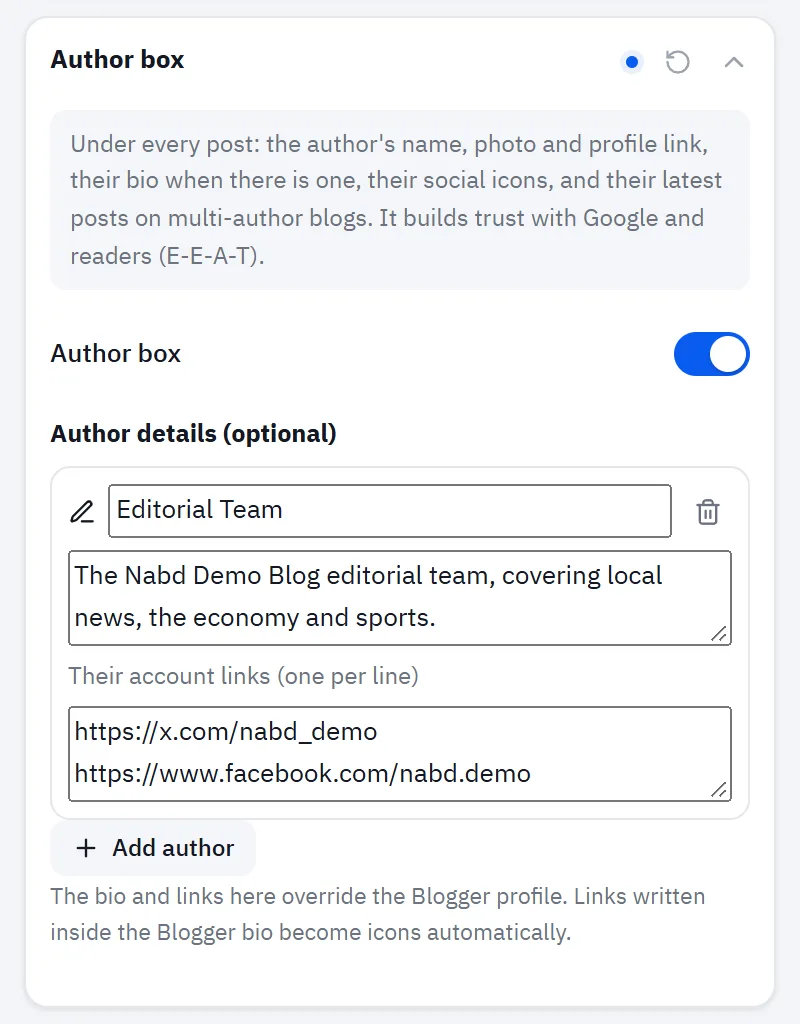
- Author boxon · off on Wiki
- Shows or hides the box. If the writer has no photo in Blogger, the first letter of their name appears instead.
- Author details (optional)
-
Each writer has three fields:
Name: "Author name as in Blogger"; the panel suggests names from your recent posts. Bio: "Short bio (overrides the Blogger profile bio)". Links: "Their account links (one per line)".
Add a writer with Add author. The bio and links here override the Blogger profile. If you leave them empty, the writer's Blogger profile bio is used, and links written inside that bio become icons automatically.
Type the exact name
In "Author box", click Add author, then pick the name from the suggestions or type it exactly as it appears in Blogger. If it doesn't match, the panel warns: "This name doesn't appear in your recent posts — it must match the author name in Blogger exactly."
Write the bio
One or two lines: who they are, what they write about, and why readers can trust them.
Add the links
One link per line. Facebook, X, Instagram, YouTube, Telegram and WhatsApp links get their own icons; any other link gets a general link icon (up to 8 links).
Apply
Click "Apply to blog" and open any post by this writer to see the box.
"Read also" and in-post links
The goal is a second and third post instead of a visitor leaving. These internal links also help Google discover your posts and understand how they relate.
- "Read also" under the post: cards in your template's style, from posts in the same labels as this post, topped up with the blog's newest posts if needed. On the Wiki template the heading becomes "See also".
- Cards inside the post: after some headings a card appears with a heading such as "Read next", "You may like" or "Suggested". Each card picks the post closest to the topic of the section above it, not a random one. Their number follows the post length, about one card per 350 words, never more than your limit. They are never placed after a conclusion or FAQ heading.
- No repeats: a post never appears in both places. Posts the visitor has already read move to the end and are marked "Read" (this is stored on the visitor's device only).
- Section link: under "Read also" there is a "More in" link to the post's label.
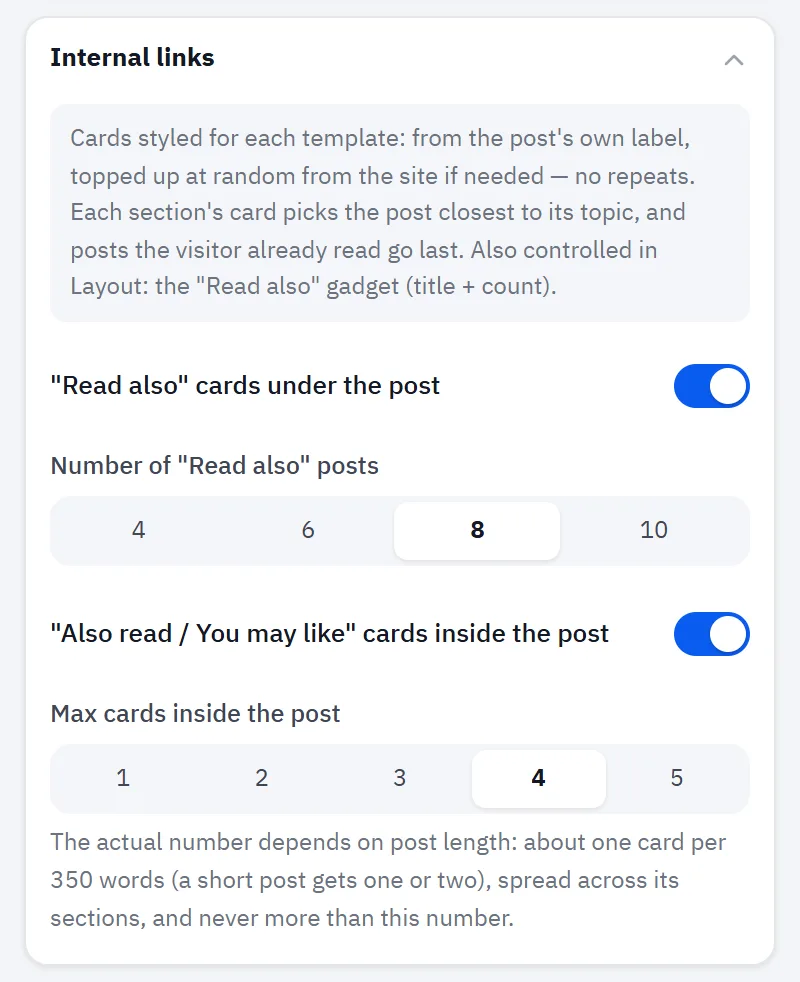
- Related postsPost tab · on
- Turns "Read also" on or off.
- Number of "Read also" postsSEO tab46✓810
- How many cards at the end of the post.
- "Also read / You may like" cards inside the postSEO tab · on
- Turns the cards inside the text on or off.
- Max cards inside the postSEO tab
- 1 to 5. Default: 4.
In Layout: the "Read also" gadget ("See also" on Wiki) has its own area. Its title is the box heading visitors see, so you can rename it there. Its content is two lines: "At end of post: 8" and "After headings: 4". Write "off" instead of a number to turn either one off.
Comments
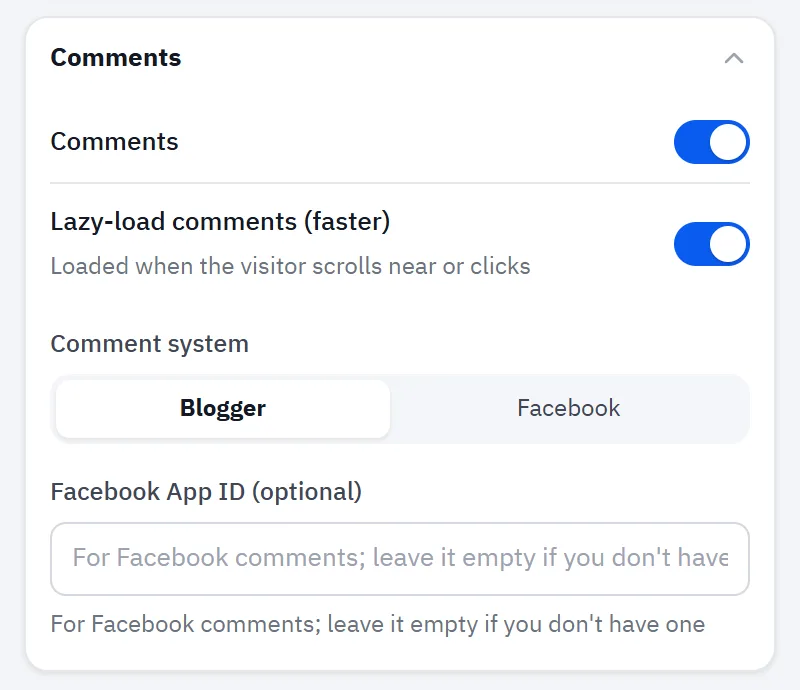
- Commentson
- Shows the comments section under the post. It appears only on posts that allow comments in Blogger's own settings.
- Lazy-load comments (faster)on
- "Loaded when the visitor scrolls near or clicks". The comments frame is one of the heaviest parts of the page, so it loads only when the visitor gets close to it or clicks "Show comments". The page is faster and nobody misses the comments.
- Comment system✓BloggerFacebook
- Blogger: normal Blogger comments, plus a "Comments" link with the count next to the post details that takes the visitor down to them. Facebook: the Facebook comments box instead of Blogger comments; with lazy loading on, Facebook's script loads only with the comments.
- Facebook App ID (optional)
- "For Facebook comments; leave it empty if you don't have one". Useful if you have a Facebook app and want to link the comments to it.
Facebook comments and the sidebar: the "Comments" tab of the sidebar's "Most read · Recent · Comments" gadget hides itself when comments use Facebook, because it lists Blogger comments only.
What the theme does by itself, and Wiki
These work on every post with no setting at all:
- Image alt text: any image without alt text gets the post title, which is better for Google and for blind readers.
- External links: open safely in a new tab, so visitors don't leave your blog.
- FAQs: if the post has a heading such as "FAQ" or "Frequently asked questions" followed by questions as headings with their answers below, or an FAQ block from the extension's editor, the theme adds FAQ data for Google (at least two questions). See Writing.
- Video data: the first real YouTube player in the post is described to Google as the post's video.
- Free areas: Layout has "Top of post" and "Bottom of post" areas for any gadget you add yourself.
Wiki (Wiki template only)
- Number headings automatically (1, 1.1)on
- The theme numbers the post's headings like Wikipedia: 1, 2, then 1.1 for subheadings. Turn it off if you number your headings yourself.
Note that the Wiki template starts with different defaults: "Reading progress bar", "Navigation (newer/older)" and "Author box" are off, and the "Date" switch doesn't appear. You can turn the first three on if you like.
Quick recipes
A lighter, faster post page
Keep the speed tools on
"Lite YouTube (loads on click)" and "Lazy-load comments (faster)" remove the heaviest parts of the page.
Use Blogger comments
Unless you really need Facebook, Blogger comments are lighter.
Turn off what you don't need
For example "Font size buttons" if your posts are short, then click "Apply to blog".
More pages per visit
Split posts with headings
Clear H2 headings show the contents box and give the in-post cards a place to go.
Raise the suggestions
In the SEO tab, set "Number of "Read also" posts" to 8 or 10 and "Max cards inside the post" to 4 or 5.
Label your posts well
"Read also" starts from the post's own labels, so accurate labels give closer suggestions.
Troubleshooting
The table of contents doesn't show
It appears when the post has two or more H2 or H3 headings. Bold text alone doesn't count as a heading. Also check that "Table of contents" is on.
The contents box shows closed
That's on purpose, so it doesn't push the text down. Visitors open it with one click on its title. It opens by itself only in the side column of the Tech and Wiki templates on wide screens.
The author box shows the Blogger bio, not mine
The name in "Author details" doesn't match the Blogger author name. Copy it exactly as it appears under the post title, then apply.
The writer's latest posts don't show in the box
They appear only on blogs with two or more writers. On a single-writer blog they would just repeat "Read also".
A post has no comments section
Check that "Comments" is on and that Blogger allows comments on this post (in the post options in the editor and in Blogger's comment settings). With lazy loading, comments appear as the visitor scrolls near them or clicks "Show comments".
A YouTube video shows only as an image
That's "Lite YouTube": an image with a play button, and the video starts when clicked. If you want every video as a real player, turn the switch off, but the page will be slower.
I changed the "Read also" count and nothing changed
Make sure you clicked "Apply to blog". The value actually used is the one in the "Read also" gadget in Layout; the panel writes to it on apply when you change the setting.